
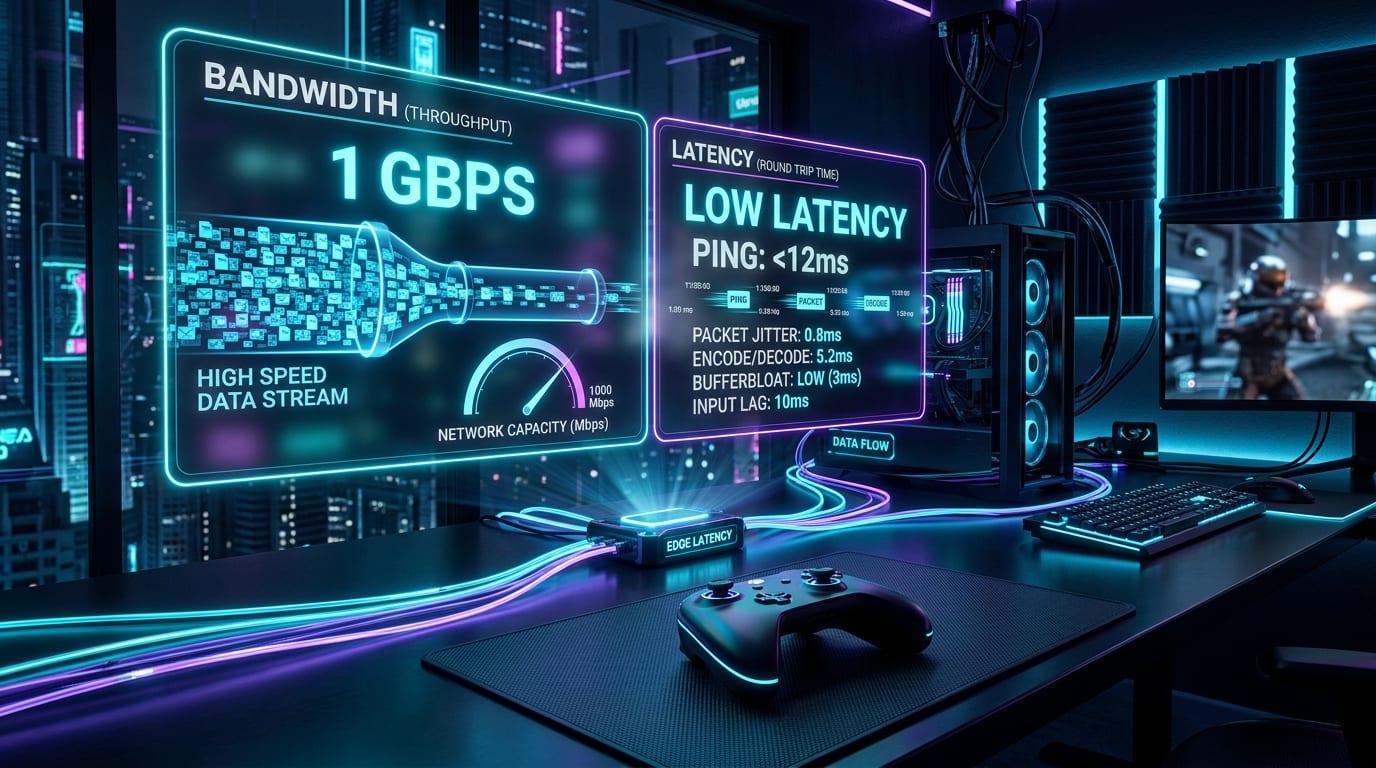
You run an online speed test on your phone or laptop. The needle swings across the dial and settles on a triumphant 250 Mbps download speed. Confident in your blazing connection, you fire up a cloud gaming session on GeForce NOW or Xbox Cloud Gaming—only to be greeted by stuttering frames, blurry compression artifacts, and frustrating controller delays.
How can a connection that streams 4K Netflix without a hiccup crumble under the weight of a video game stream?
The reality of cloud gaming in 2026 is that raw speed (bandwidth) is only one piece of the puzzle. Unlike video streaming platforms, which can buffer 30 to 60 seconds of video ahead of time in your device's memory, cloud gaming is an instantaneous, interactive bidirectional pipeline. Every single frame must be rendered, transmitted, decoded, and displayed in less than 20 milliseconds.
Here is the definitive technical guide to what internet speed, latency thresholds, and hardware configurations you genuinely need for flawless cloud gaming in 2026.
---
1. The Real Metrics: Bandwidth vs Latency vs Jitter vs Packet Loss
Before looking at raw megabits per second (Mbps), you must understand the four distinct network factors that dictate your gaming experience:
- Bandwidth (Download Speed in Mbps): The width of your internet pipe. It determines how much raw video data can pass through every second. If your bandwidth is too low, the stream will reduce its resolution or freeze.
- Latency (Ping in Milliseconds): The physical roundtrip travel time between your device and the cloud server. A ping under 25ms feels near-local; a ping over 60ms feels sluggish.
- Jitter (Variance in Latency): The consistency of your ping. If your ping fluctuates wildly between 20ms and 80ms, the cloud client cannot synchronize frames, resulting in harsh micro-stutters and hitching.
- Packet Loss (Lost Data): The percentage of data packets that fail to reach their destination. Because cloud video streaming relies on real-time UDP protocols that cannot wait for retransmissions, even 1% packet loss causes visual pixelation, audio popping, or momentary screen tear.
Title: The Cloud Gaming Network Rule
Badge: Network Axiom
A stable, low-jitter 50 Mbps connection over an Ethernet cable will deliver a vastly superior cloud gaming experience compared to an erratic 500 Mbps Wi-Fi connection with packet loss and ping spikes.
---
2. Realistic Bandwidth Targets by Resolution & Framerate
While official platform minimums often claim you can play on 15 Mbps, real-world conditions demand additional headroom to account for household members streaming 4K video, downloading files, or scrolling social feeds.
Title: Dedicated Headroom Bandwidth Requirements (Mbps)
Badge: Recommended Connection Speed
720p at 60 FPS (Mobile/Basic): 20 Mbps | 20 | emerald | Minimum comfortable bandwidth for handheld streaming
1080p at 60 FPS (Standard HD): 40 Mbps | 40 | cyan | Sharp 1080p stream with headroom for background traffic
1080p at 120 FPS (High Refresh Esports): 65 Mbps | 65 | indigo | High-framerate stream on GeForce NOW Priority/Ultimate
1440p QHD at 120 FPS (Enthusiast Monitor): 85 Mbps | 85 | amber | Pristine QHD resolution with low compression artifacting
4K Ultra HD at 60 FPS (Living Room TV): 100 Mbps | 100 | amber | AV1/HEVC 4K stream with HDR and surround audio
4K Ultra HD at 120/240 FPS (GeForce NOW Ultimate): 150 Mbps | 150 | rose | Uncompromised flagship cloud stream with maximum bitrate
Note: Values represent total recommended ISP bandwidth for a smooth experience without household contention.
---
3. Platform-by-Platform Verified Network Requirements
Not all cloud gaming platforms are built the same. Here is how the top services stack up in 2026:
| Platform | Official Minimum | Recommended 1080p 60FPS | Maximum Supported Tier | Target Latency | Best Suited For |
|---|---|---|---|---|---|
| NVIDIA GeForce NOW Ultimate | 45 Mbps | 50 Mbps | 4K at 240 FPS / HDR | < 25 ms | Enthusiast PC gamers, 1440p/4K monitors, competitive action |
| NVIDIA GeForce NOW Priority | 25 Mbps | 35 Mbps | 1080p at 60 FPS | < 40 ms | Casual and mid-tier gamers on laptops and tablets |
| Xbox Cloud Gaming (xCloud) | 20 Mbps | 30 Mbps | 1080p at 60 FPS | < 50 ms | Xbox Game Pass Ultimate subscribers, handhelds, smart TVs |
| Amazon Luna | 15 Mbps | 25 Mbps | 1080p at 60 FPS | < 45 ms | Prime members, family games, Fire TV devices |
| Shadow PC (Full Virtual Desktop) | 30 Mbps | 60 Mbps | 4K at 60 FPS | < 30 ms | Power users needing a full Windows desktop in the cloud |
---
4. The Physical Link: Wi-Fi vs Ethernet
If you are experiencing cloud gaming lag despite paying for a 300 Mbps or 1 Gbps internet package, your home Wi-Fi is almost certainly the culprit.
Why 2.4GHz Wi-Fi is Unusable
2.4GHz wireless signals travel far through walls, but the frequency band is heavily congested by Bluetooth devices, microwave ovens, baby monitors, and neighbors' routers. It suffers from severe packet jitter and interference. Gaming on 2.4GHz Wi-Fi is universally unpleasant.
5GHz Wi-Fi and Wi-Fi 6E/7
5GHz and the newer 6GHz bands (Wi-Fi 6E and Wi-Fi 7) offer high throughput and much lower channel congestion. If you must play wirelessly:
- Remain in the same room as your router with direct line-of-sight.
- Configure your router to split 2.4GHz and 5GHz networks into separate SSIDs, ensuring your gaming device never automatically downgrades to 2.4GHz.
- Use a Wi-Fi 6 or 6E router with OFDMA and MU-MIMO enabled to prevent ping spikes when other household devices transmit.
The Undefeated Champion: Cat6 Ethernet
Nothing matches a direct copper Ethernet cable. A physical cable eliminates 100% of wireless signal dropouts, guarantees single-digit millisecond latency to your router, and prevents packet loss. If you are serious about cloud gaming, running a thin Cat6 cable to your PC or TV is the single most impactful upgrade you can make.
---
5. The Hidden Hazard: Monthly ISP Data Caps
While streaming 4K Netflix consumes approximately 7 GB of data per hour, a maximum-bitrate 4K 120Hz cloud gaming stream on GeForce NOW consumes up to 45 GB per hour.
If your home internet service provider (such as Comcast Xfinity or Cox) enforces a standard 1.2 Terabyte (1,200 GB) monthly data cap, cloud gaming can consume your entire household allowance astonishingly fast:
| Resolution & Framerate | Average Bitrate | Data Used per Hour | 10 Hours / Week | 25 Hours / Week |
|---|---|---|---|---|
| 720p at 60 FPS | ~12 Mbps | ~5.4 GB / hr | ~216 GB / month | ~540 GB / month |
| 1080p at 60 FPS | ~25 Mbps | ~11.2 GB / hr | ~448 GB / month | ~1,120 GB / month |
| 1440p at 120 FPS | ~45 Mbps | ~20.2 GB / hr | ~808 GB / month | ~2,020 GB / month (Exceeds 1.2TB) |
| 4K at 120 FPS Ultra | ~75 Mbps | ~33.8 GB / hr | ~1,352 GB / month (Exceeds 1.2TB) | ~3,380 GB / month (Severe Overages) |
Title: Data Cap Warning
Badge: ISP Advisory
If you plan to play more than 15 hours of cloud gaming per week at 1440p or 4K, you MUST either subscribe to an unlimited data add-on with your ISP or switch to an uncapped fiber provider (such as AT&T Fiber, Google Fiber, or Verizon Fios).
---
6. Diagnostic Protocol: How to Fix Cloud Stutter on Fast Internet
If your connection tests fast but your cloud games still stutter, follow this systematic diagnostic checklist:
Title: 5-Step Cloud Gaming Latency Optimization
Badge: Network Protocol
- 1. Connect via Physical Ethernet: Plug an Ethernet cable into your PC or streaming box. If the stutter immediately disappears, your issue was local Wi-Fi interference.
- 2. Enable Router QoS (Bufferbloat Mitigation): Access your home router admin portal (192.168.1.1) and enable Quality of Service (QoS) or SQM (Smart Queue Management). Set your gaming device as highest priority so background file uploads cannot cause latency spikes.
- 3. Select the Closest Datacenter Manually: In the GeForce NOW or cloud app settings, switch Server Location from 'Auto' to your specific closest geographic server (e.g. US Central, US East, EU West). Sometimes auto-routing erroneously routes you to a distant server cluster.
- 4. Enable Hardware AV1 / HEVC Decoding: In client settings, ensure hardware-accelerated video decoding is active. If your device's CPU is attempting to decode 4K video in software, it will drop frames and emulate network lag.
- 5. Disable Location Services and Cloud Backups: On macOS and Windows, disable active Wi-Fi location scanning and pause Dropbox/Google Drive/OneDrive sync engines while playing, as background synchronization pulses create predictable 5-second stutter intervals.
---
Summary Checklist: Are You Ready for 2026 Cloud Gaming?
Before subscribing to any service, run this three-question readiness audit:
1. Is your ping to your regional datacenter consistently under 35ms? (Test directly inside the GeForce NOW or Xbox network test tool).
2. Can your home network provide at least 50 Mbps of uninterrupted downstream bandwidth while other family members use the internet?
3. Can you connect via Ethernet or direct-line-of-sight 5GHz Wi-Fi?
If you answered yes to all three, you are primed to enjoy an extraordinary, near-instantaneous gaming experience without ever buying an expensive desktop graphics card.
Ready to check if your computer's display and hardware can take advantage of high-refresh streaming? Use our PC Game Requirements Checker or design a custom local rig with the Gaming PC Builder. Join the conversation on the Game Vault Community Forum to discuss provider speeds and optimization tweaks.