
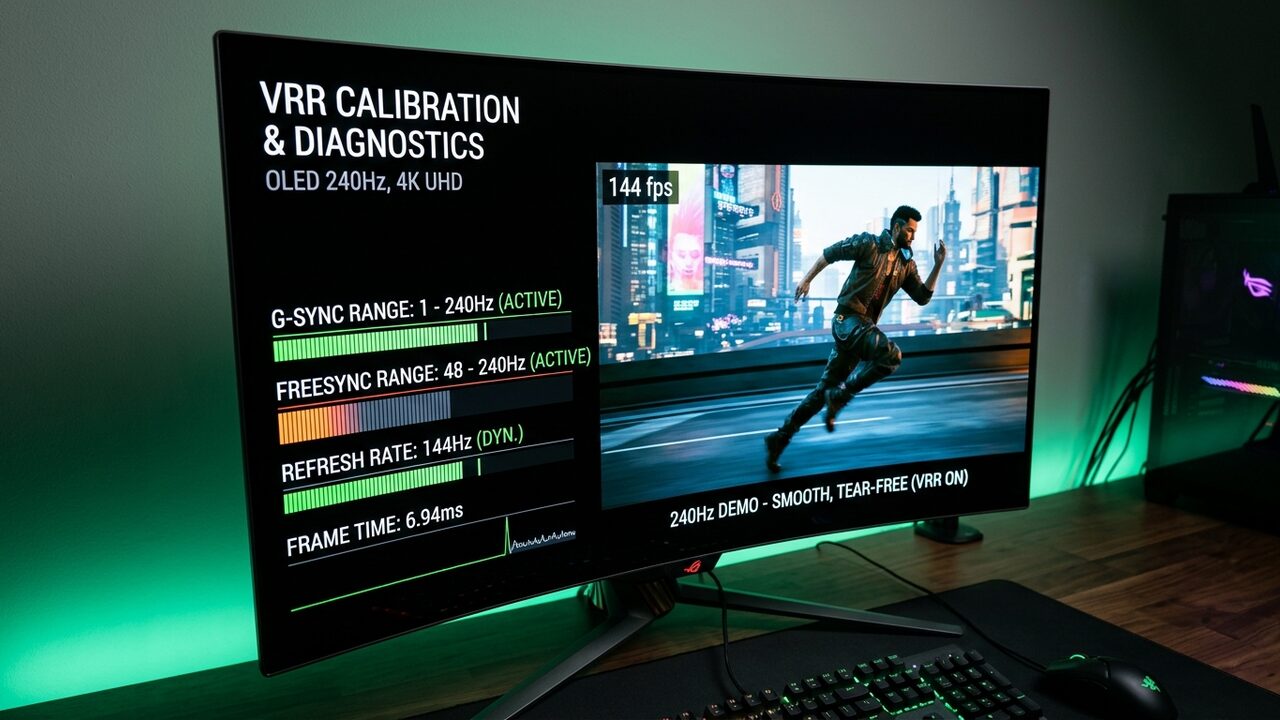
Variable Refresh Rate (VRR)—marketed under hardware and driver standards such as NVIDIA G-SYNC, AMD FreeSync, and HDMI 2.1 VRR—is widely regarded as the most transformative display technology introduced to PC gaming in the past two decades. By dynamically synchronizing the physical refresh cycle of your monitor directly to the exact millisecond the graphics card outputs a completed frame buffer, VRR eliminates visual screen tearing and dramatically reduces motion judder.
Yet, hundreds of thousands of PC gamers on Windows 11 discover to their frustration that despite enabling G-SYNC or FreeSync in their control panel, their games still suffer from jarring micro-stutters, sudden horizontal screen tears, and disorienting brightness flickering in dark loading screens and low-framerate cutscenes. At Game Vault Forum, founded by Joel Ayuba (LinkedIn Profile | Company Page), our Hardware Lab has extensively benchmarked variable refresh rate display pipelines across IPS, VA, and QD-OLED gaming monitors. The harsh reality is that VRR is not magic; it is a rigid physical timing window governed by display scalar hardware, Extended Display Identification Data (EDID) firmware boundaries, and operating system compositing layers.
If your game's frame rate drifts outside that physical hardware window—even for a split second—VRR instantly disengages, plunging your display back into tearing or double-buffered judder. This guide provides the definitive empirical calibration manual for finding your monitor's true hardware VRR window, configuring Low Framerate Compensation (LFC), eliminating near-black OLED gamma flicker, and establishing the exact mathematical FPS cap required for flawless, tear-free motion on Windows 11.
Title: Variable Refresh Rate (VRR) Calibration Matrix
Badge: Lab Protocols
- The VRR Triad: Flawless variable refresh requires three non-negotiable settings: (1) G-SYNC / FreeSync enabled, (2) Driver-level V-Sync forced ON globally, and (3) In-game V-Sync turned OFF.
- The FPS Cap Rule: Frame rates must be capped 3 to 4 FPS below maximum refresh at 144Hz–240Hz (e.g., 141 FPS on 144Hz, 237 FPS on 240Hz) to prevent the frame buffer from bumping against the hardware refresh ceiling.
- Low Framerate Compensation (LFC): Requires a maximum refresh rate at least 2.0x higher than the minimum refresh floor (e.g., a 48Hz–144Hz display supports LFC; a 55Hz–75Hz display does not).
- True Window Discovery: Manufacturer box specs frequently exaggerate VRR ranges; Custom Resolution Utility (CRU) is required to inspect the native CTA-861 Extension Block in display firmware.
---
1. The Anatomy of Adaptive Sync: Dedicated Modules vs. VESA Adaptive-Sync
To understand why VRR fails on your PC, you must understand the hardware architecture powering your display:
1. Native G-SYNC (Dedicated Hardware FPGA Module)
Pioneered by NVIDIA, Native G-SYNC displays incorporate a proprietary Altera or Intel FPGA processing board inside the monitor chassis. This dedicated hardware scalar replaces standard third-party scalar chips. It provides:
- Variable Overdrive: The scalar dynamically tunes pixel overdrive voltage across every individual Hertz from 1Hz up to the maximum refresh rate, virtually eliminating ghosting and inverse overshoot at 40 FPS, 90 FPS, and 240 FPS alike.
- Ultra-Wide Operating Range: True G-SYNC modules operate down to 1 Hz. Even if a game dips to 18 FPS, the hardware scalar dynamically duplicates scanouts without driver overhead.
- Negligible VRR Stutter: Because the FPGA module handles frame delivery directly from GPU display controllers, frame pacing is rock-solid.
2. VESA Adaptive-Sync / AMD FreeSync / G-SYNC Compatible
The vast majority of modern gaming monitors rely on the VESA DisplayPort Adaptive-Sync open standard (or HDMI 2.1 VRR). Instead of an expensive proprietary FPGA, these displays utilize standard commodity scalars (manufactured by Realtek, MediaTek, or Novatek):
- Fixed Operating Window: Standard scalars only support VRR within a limited frequency band—most commonly 48 Hz to 144 Hz, or 60 Hz to 240 Hz.
- Driver-Dependent LFC: If the framerate falls below 48 FPS, the scalar cannot handle the signal natively. The graphics driver must step in and perform software-level frame doubling.
- Firmware EDID Limitations: Many budget and mid-range monitors suffer from poorly calibrated firmware timing tables that report inaccurate VRR ranges to Windows 11, causing periodic black screen dropouts and signal desynchronization.
---
2. Decoding the EDID: How to Use Custom Resolution Utility (CRU) to Uncover True Boundaries
Never trust the marketing specifications printed on your monitor's retail box. Manufacturers routinely claim "FreeSync Premium 40Hz–144Hz", yet internal scalar firmware may be locked to a 48Hz floor over HDMI or suffer severe pixel inversion below 55Hz.
To inspect the true physical VRR window programmed into your monitor's Extended Display Identification Data (EDID), follow our lab's diagnostic procedure:
1. Download Custom Resolution Utility (CRU) by ToastyX.
2. Launch CRU with Administrator privileges and select your active display from the top drop-down menu (ensure it reads (active)).
3. Under the Extension Blocks panel at the bottom of the interface, double-click CTA-861 (or DisplayID on modern DisplayPort 1.4 / 2.1 monitors).
4. Locate the Data Blocks list and look for FreeSync Range or VRR Range.
5. Click Edit. The dialog box will reveal the exact physical limits programmed into the monitor's EEPROM:
- `Min V-Rate (Hz)`: Typically 48 Hz (or 60 Hz on older 4K panels).
- `Max V-Rate (Hz)`: Your display's native maximum refresh rate (e.g., 144 Hz, 165 Hz, 240 Hz).
6. The CRU Range Optimization Test: If your display's minimum range is set to 48Hz, you can often safely lower `Min V-Rate` to 40 Hz or 42 Hz in CRU, click OK, and run `restart64.exe`. If the monitor handles 42Hz without brightness flickering or image corruption, you have successfully expanded your VRR operating window by 6Hz, delaying the transition into Low Framerate Compensation during intense gaming drops.
---
3. Low Framerate Compensation (LFC): The 2x Rule and Boundary Stutter
What happens when your game drops below the minimum refresh frequency of your monitor? If your monitor's VRR floor is 48 Hz and your game stumbles into a heavy boss battle at 42 FPS, the monitor cannot refresh at 42 Hz without suffering catastrophic image flicker.
This is where Low Framerate Compensation (LFC) is invoked:
- The GPU driver intercepts the 42 FPS output and automatically doubles every frame, sending 84 frames per second to the display.
- Because 84 Hz falls cleanly inside the 48Hz–144Hz VRR window, the display remains in adaptive sync without tearing!
title: The LFC 2.0x Multiplier Rule: Mathematical Hardware Requirement
badge: Display Scalar Architecture
- Mathematical Formula: Maximum Refresh Rate >= (Minimum Refresh Rate * 2.0). If this condition is not met in monitor firmware EDID, the display scalar cannot double frames cleanly without tearing.
- Wide Range Compliance (e.g., 48Hz–144Hz): Multiplier equals 3.0x. When framerate falls to 40 FPS, the driver transmits 80 Hz or 120 Hz, seamlessly maintaining active VRR.
- Narrow Range Failure (e.g., 48Hz–75Hz): Multiplier is only 1.56x. True LFC is physically impossible; falling below 48 FPS forces the monitor into harsh 60Hz judder or tearing.
- Marginal Range (e.g., 60Hz–120Hz): Multiplier is exactly 2.0x. LFC functions but suffers from extreme boundary oscillation if framerate wavers between 58 and 62 FPS.
| Monitor Refresh Class | Hardware VRR Window | Refresh Multiplier | LFC Hardware Support Status | Boundary Stutter Risk | Recommended Remediation |
| :--- | :--- | :--- | :--- | :--- | :--- |
| Standard Gaming (144Hz) | 48 Hz – 144 Hz | 3.00x | Fully Supported | Low | Driver frame doubling engages smoothly at 47 FPS. |
| High Refresh (240Hz) | 48 Hz – 240 Hz | 5.00x | Fully Supported | Negligible | Supports 2x, 3x, and 4x frame repetition algorithms. |
| Budget Ultrawide (100Hz) | 48 Hz – 100 Hz | 2.08x | Marginal Support | Moderate | Boundary oscillation if framerate hovers at 46–49 FPS. |
| Entry Fast IPS (75Hz) | 48 Hz – 75 Hz | 1.56x | Unsupported | Severe | Below 48 FPS, VRR disengages immediately into tearing. |
| OLED TV (120Hz HDMI 2.1) | 40 Hz – 120 Hz | 3.00x | Fully Supported | Low | Native G-Sync Compatible scalar handles low dips cleanly. |
Why LFC Causes Stutter Near the Boundary
The most frustrating stutter occurs when a game hovers right on the edge of the LFC threshold (between 46 FPS and 50 FPS). Every time the framerate oscillates across 48 FPS, the graphics driver must repeatedly engage and disengage frame doubling:
- At 49 FPS: Single frame scanout (49 Hz)
- At 47 FPS: Double frame scanout (94 Hz)
- At 48.5 FPS: Single frame scanout (48.5 Hz)
This rapid oscillation between 48Hz and 94Hz scalar frequencies triggers noticeable micro-judder and perceived visual hitching. If your game frequently runs near the 45–50 FPS threshold, either lower visual settings to elevate average frame rates above 60 FPS, or cap your frame rate at 40 FPS to force the display to remain locked inside stable 2x LFC mode at 80 Hz.
---
4. The VRR Triad: Why G-SYNC + Driver V-Sync + FPS Cap is Mandatory
One of the most persistent myths on PC gaming forums is that "V-Sync must always be disabled when using G-SYNC or FreeSync." This misinformation stems from a fundamental misunderstanding of how the DirectX graphics presentation queue operates.
Why You Must Enable V-Sync in the Driver
When G-SYNC is active and your frame rate stays within your monitor's refresh window, V-Sync is completely dormant. It does not enforce a 60 FPS or 144 FPS cadence, nor does it introduce double-buffered input lag.
Driver-level V-Sync acts strictly as a frame pacing timing mechanism for tear line prevention:
1. When G-SYNC renders a frame, slight hardware clock drift between the GPU pixel clock and monitor internal oscillator can cause the bottom scanline to tear right at the bottom bezel. Driver V-Sync eliminates this bottom-edge tear line.
2. If your system encounters a sudden frame burst that momentarily hits 144.1 FPS, driver V-Sync catches the frame buffer before it can tear across the center of your screen.
Why You Must Disable In-Game V-Sync
Never enable V-Sync inside the game's graphics options menu. Game engine developers frequently implement archaic, double-buffered or triple-buffered V-Sync algorithms that queue up two to three full frames of backpressure in memory. This adds 30ms to 60ms of sluggish mouse latency.
- Rule: In-game V-Sync OFF. Driver-level V-Sync (NVIDIA Control Panel or AMD Software) ON.
---
5. The Mathematical Precision of FPS Capping
If driver V-Sync is enabled, what prevents the system from hitting 144 FPS and activating traditional V-Sync input lag? The answer is a strict frame rate cap.
A graphics card cannot deliver frames with infinite precision. Frame times fluctuate slightly from frame to frame. If you set a frame cap of 144 FPS on a 144 Hz display, frame time variance will cause individual frames to deliver in 6.8ms instead of 6.94ms, momentarily exceeding 144 FPS. The GPU driver will instantly apply V-Sync backpressure, introducing sudden input delay spikes.
To prevent the frame buffer from ever touching the ceiling of the VRR window, you must apply a safety offset:
title: The Mathematical FPS Cap Safety Offset Formula
badge: Precision Calibration
- Why an Offset is Required: Discrete frame times naturally deviate by ±0.3ms to ±1.2ms frame-to-frame. Without a buffer, rendering bursts momentarily exceed monitor refresh and trigger V-Sync input lag.
- Formula: Safe Cap = Native Refresh - Safety Offset.
- 60Hz to 165Hz Monitors: Subtract 3 to 4 FPS to absorb small pacing deviations.
- 240Hz to 540Hz Monitors: Subtract 3 to 10 FPS to absorb rapid frame burst transients during light geometry scenes.
| Display Native Refresh | Hardware Refresh Period | Recommended FPS Cap | Safety Offset | Target Frame Time | Primary Ingestion Engine |
| :--- | :--- | :--- | :--- | :--- | :--- |
| 60 Hz Standard | 16.67 ms | 57 FPS | -3 FPS | 17.54 ms | In-Engine / RTSS / Driver |
| 75 Hz Office/Gaming | 13.33 ms | 72 FPS | -3 FPS | 13.88 ms | In-Engine / RTSS / Driver |
| 120 Hz 4K OLED | 8.33 ms | 116 FPS | -4 FPS | 8.62 ms | In-Engine / RTSS / Driver |
| 144 Hz Fast IPS | 6.94 ms | 141 FPS | -3 FPS | 7.09 ms | In-Engine / RTSS / Driver |
| 165 Hz High Refresh | 6.06 ms | 161 FPS | -4 FPS | 6.21 ms | In-Engine / RTSS / Driver |
| 240 Hz Competitive | 4.17 ms | 237 FPS | -3 FPS | 4.22 ms | In-Engine / RTSS / Driver |
| 360 Hz Pro Esports | 2.78 ms | 353 FPS | -7 FPS | 2.83 ms | In-Engine / RTSS / Driver |
| 480 Hz Ultra High | 2.08 ms | 472 FPS | -8 FPS | 2.12 ms | In-Engine / RTSS / Driver |
| 540 Hz Cutting-Edge | 1.85 ms | 530 FPS | -10 FPS | 1.88 ms | In-Engine / RTSS / Driver |
Where to Set the Frame Rate Cap
Always prioritize capping tools in this exact hierarchy:
1. In-Engine Frame Rate Limiter: If the game features a built-in frame cap slider with exact integer input (e.g., Overwatch 2, Apex Legends, Cyberpunk 2077), use it. In-engine limiters hook directly into the simulation loop before draw calls are generated, providing the absolute lowest input latency.
2. RivaTuner Statistics Server (RTSS): The industry benchmark for external frame pacing. RTSS introduces exactly one frame of delay while delivering a mathematically flat frame-time line that driver limiters cannot match.
3. NVIDIA Control Panel Max Frame Rate / AMD Radeon Chill: Driver-level limiters that introduce zero third-party software overhead, though with slightly more frame-time variance (±0.4ms) than RTSS.
---
6. OLED and VA Gamma Flicker: Resolving Near-Black Luminance Shifts
Gamers who upgrade to cutting-edge QD-OLED, WOLED, or curved VA panels frequently report an alarming phenomenon: when VRR is active, dark corridors, loading screens, and menu lobbies flicker rapidly between deep black and washed-out gray.
The Physics of VRR Gamma Flicker
In OLED and VA panels, the electrical voltage curve required to charge a sub-pixel to a specific brightness level is calibrated for a single, fixed refresh rate (typically 120Hz or 240Hz).
When VRR is active and your frame rate fluctuates rapidly between 60 FPS and 140 FPS, the duration of each refresh cycle constantly expands and contracts:
- At 144 Hz, a frame lasts 6.94ms.
- At 60 Hz, a frame lasts 16.67ms.
During the longer 16.67ms cycle, the sub-pixels in near-black gray shades (dark grays between 1% and 5% luminance) accumulate excess electrical charge, causing them to physically emit more light than intended. As the frame rate bounces rapidly between 60 and 120 FPS, the perceived brightness of dark scenes pulsates at high frequency.
The Proven 4-Step Solution for VRR Flicker
1. Stabilize Frame Pacing: Eliminate the wild frame-rate swings that trigger gamma shifts. If a game oscillates between 70 FPS and 130 FPS, cap the game at 80 FPS or 90 FPS. A stable frame rate produces a stable sub-pixel electrical charge, completely silencing the flicker.
2. Enable Monitor VRR Anti-Flicker Profiles: Modern OLED monitors (e.g., ASUS OLED Anti-Flicker, LG VRR Fine-Tune Dark Area) lock the scalar's low-end gamma curve to prevent voltage drift.
3. Disable Unoptimized In-Game Loading Screen Loops: Many PC games run loading screens with uncapped 1,000+ FPS loops, followed by instant drops to 20 FPS when reading save files. Enable background frame caps to keep loading screen refresh steady.
4. Inspect DisplayPort Cable Quality: Sub-standard DisplayPort cables lacking VESA DP8K / UHBR certification suffer from packet re-transmissions that cause scalar voltage drops in dark scenes. Upgrade to a certified VESA DisplayPort 1.4 or 2.1 cable.
---
7. Windows 11 23H2 / 24H2 Optimizations: DirectFlip, MPO, and Auto HDR
Windows 11 features major underlying graphics improvements that directly impact VRR stability:
Optimizations for Windowed Games (DirectFlip)
In Windows 11, open Settings > System > Display > Graphics > Default Graphics Settings and verify that Optimizations for windowed games is turned ON.
- This feature upgrades legacy DirectX 10 and 11 titles running in Borderless Windowed mode to the modern DXGI Flip presentation model.
- It enables Multi-Plane Overlays (MPO), allowing the GPU to display the game in an independent hardware scanout plane with full G-SYNC support, completely bypassing the Desktop Window Manager (DWM) composition latency.
Multi-Plane Overlay (MPO) Driver Stability
While MPO provides direct hardware scanout, corrupted graphics drivers or conflicting overlays (such as Discord hardware acceleration or browser video decoding on a secondary monitor) can cause MPO desynchronization, resulting in intermittent desktop black screens or frame skipping. If you encounter severe stutter when playing a game while watching a YouTube video on a second monitor, test disabling hardware acceleration in your web browser.
---
8. Refresh Rate & Recommended FPS Caps Reference Table
| Monitor Native Refresh | Hardware VRR Window | Recommended FPS Cap | Optimal In-Game V-Sync | Global Driver V-Sync | Primary Capping Method |
| :--- | :--- | :--- | :--- | :--- | :--- |
| 60 Hz | 48 Hz - 60 Hz | 57 FPS | OFF | ON | In-Engine / RTSS |
| 75 Hz | 48 Hz - 75 Hz | 72 FPS | OFF | ON | In-Engine / RTSS |
| 120 Hz (OLED) | 48 Hz - 120 Hz | 116 FPS | OFF | ON | In-Engine / RTSS |
| 144 Hz (Esports) | 48 Hz - 144 Hz | 141 FPS | OFF | ON | In-Engine / RTSS |
| 165 Hz (Fast IPS) | 48 Hz - 165 Hz | 161 FPS | OFF | ON | In-Engine / RTSS |
| 180 Hz (Budget) | 48 Hz - 180 Hz | 175 FPS | OFF | ON | In-Engine / RTSS |
| 240 Hz (OLED/IPS)| 48 Hz - 240 Hz | 237 FPS | OFF | ON | In-Engine / RTSS |
| 360 Hz (Competitive)| 60 Hz - 360 Hz | 353 FPS | OFF | ON | In-Engine / RTSS |
| 540 Hz (Ultra High) | 60 Hz - 540 Hz | 530 FPS | OFF | ON | In-Engine / RTSS |
---
9. The 9-Step Zero-Stutter VRR Calibration Protocol
Follow this exact calibration sequence to guarantee zero tearing, zero micro-stutter, and optimal input latency:
1. Physical Cable Verification: Connect your monitor via DisplayPort 1.4a or certified HDMI 2.1. Do not use legacy HDMI 2.0 or passive adapters.
2. OS Refresh Rate Configuration: In Windows 11, open Settings > System > Display > Advanced display and confirm your monitor is set to its absolute highest supported refresh rate (e.g., 240 Hz).
3. Monitor OSD Activation: Open your monitor's physical On-Screen Display (OSD) menu with the physical joystick. Enable FreeSync Premium or G-SYNC. Verify that deep sleep / power saving modes on DisplayPort are disabled.
4. NVIDIA / AMD Driver Setup:
- For NVIDIA: Open NVIDIA Control Panel > Set up G-SYNC > Check "Enable G-SYNC, G-SYNC Compatible" > Select "Enable for windowed and full screen mode" > Check the box to apply settings to the specific display model.
- For AMD: Open AMD Software > Gaming > Display > Toggle AMD FreeSync to Enabled.
5. Enforce Driver-Level V-Sync:
- In NVIDIA Control Panel > Manage 3D Settings > Global Settings > Scroll to Vertical sync > Change to On.
- In AMD Software > Gaming > Graphics > Set Wait for Vertical Refresh to Always on.
6. Disable In-Game V-Sync: Launch your game, navigate to Graphics/Display options, and set V-Sync to OFF.
7. Apply the Safe FPS Cap: Set the in-game maximum frame rate limiter (or RTSS) to your refresh rate minus the safety offset (e.g., 141 FPS for 144Hz, 237 FPS for 240Hz).
8. Verify Hardware Mode in CapFrameX: Launch CapFrameX and verify that the presentation mode reads Hardware: Independent Flip.
9. Real-Time Tear Line Audit: Pan your camera rapidly across vertical high-contrast edges (doorways, pillars, telegraph poles). If the line remains razor-sharp from top to bottom with zero horizontal breaks, your VRR calibration is mathematically perfect.
For companion hardware analysis, test your frame pacing across game profiles in our FPS Calculator, check hardware limits in our PC Game Requirements Checker, and discuss display calibration in the Game Vault Community Forum.