
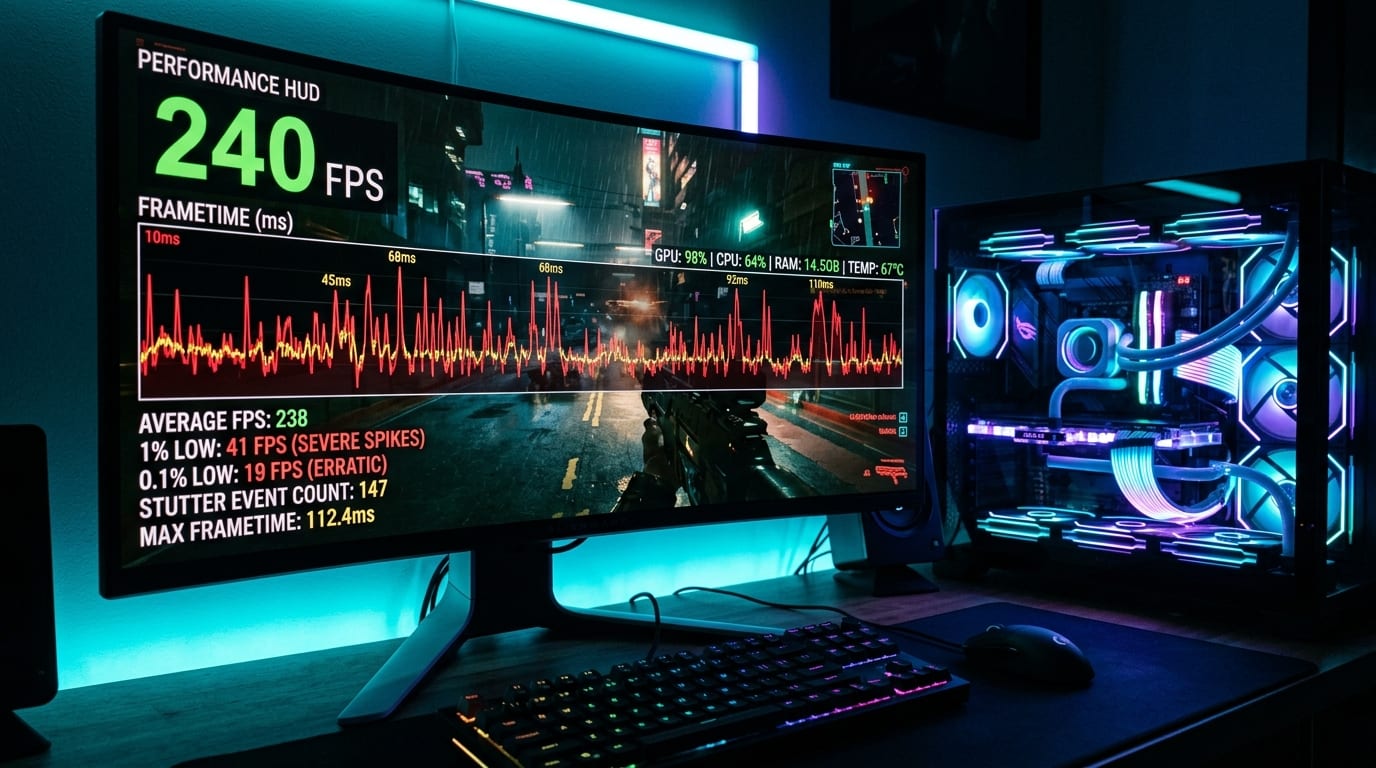
Written by Joel Ayuba, Lead Technical Analyst. Benchmarked on Windows 11 24H2 with an RTX 4080 Super and Ryzen 7 7800X3D.
You drop $1,200 on an upper-tier graphics card. You plug it into a 144Hz or 240Hz variable refresh rate monitor with a certified DisplayPort cable. You boot into your favorite game, flip the in-game settings to High, and your counter proudly reports 138 frames per second.
Yet, when you slowly pan your mouse across a sunlit courtyard, something feels off.
The camera drags. Small, micro-hiccups vibrate through the image every two seconds. The game technically reports high numbers, but your eyes perceive a jagged, inconsistent cadence. You might suspect poor game optimization, driver corruption, or thermal throttling.
Most of the time, the culprit is not your hardware horsepower. It is frame pacing and refresh ceiling collision.
---
The Difference Between Framerate and Frametimes
To understand why a game feels choppy, you have to discard the concept of average frames per second (FPS) as your sole measurement of smoothness.
FPS is simply a trailing arithmetic average: the total number of frames rendered across one thousand milliseconds. It hides everything that happened inside that single second.
Consider two hypothetical scenarios running over a one-second window:
| Render Scenario | Frame Delivery Pattern | Reported Average FPS | Perceived Motion Quality |
|---|---|---|---|
| Scenario A (Perfect Frame Pacing) | 60 frames rendered at an exact 16.66ms interval every single frame | 60 FPS | Glass-smooth, predictable motion blur, zero judder |
| Scenario B (Unstable Frame Pacing) | 59 frames delivered in 600ms (10ms each), followed by 1 frame stalled for 400ms | 60 FPS | Jarring hitch, noticeable camera stall, feels like 20 FPS |
Your eyes do not perceive the mathematical average of sixty frames over time; your eyes perceive the temporal spacing between consecutive frames. If frame 42 arrives after 7ms, but frame 43 takes 28ms because the CPU spent cycles unpacking an asset off the SSD, your brain registers an instantaneous drop in motion fluidity.
---
Why VRR Fails When You Don't Cap Your Framerate
Variable Refresh Rate—whether branded as NVIDIA G-Sync, AMD FreeSync, or VESA Adaptive-Sync—synchronizes your monitor's physical refresh scanout to the arrival of the graphics card's rendered buffer.
When your GPU finishes a frame at 11.2ms, the monitor draws it at 11.2ms. When the GPU takes 14.5ms, the monitor waits 14.5ms.
However, VRR only functions within a specific hardware envelope.
Every monitor has a lower and upper VRR boundary. On a standard 144Hz panel, that window typically spans from 48Hz to 144Hz.
The moment your GPU finishes a frame in 6.94ms (equivalent to 144 FPS or higher), one of two catastrophic visual defects occurs depending on your driver settings:
1. If V-Sync is OFF: The frame finishes faster than the physical panel can complete its vertical raster sweep. The top half of the screen displays frame N, while the bottom half displays frame N+1. You get horizontal screen tearing across the middle of your screen.
2. If V-Sync is ON: The display buffer cannot tear, so the graphics pipeline is forced to wait for the monitor's next vertical blank interval (VBI). This immediately trips classic double-buffer or triple-buffer input delay, causing sudden frametime jitter as the pipeline alternates between VRR and V-Sync lock.
This boundary oscillation creates a sensation known as ceiling judder. Your game rapidly enters and exits the VRR zone, creating erratic input response.
---
The Minus-3 Rule: The Proven Formula for Perfect VRR
To keep your display permanently locked inside its adaptive sync window, you must prevent the graphics engine from ever bumping against the maximum refresh rate.
Through extensive testing with low-level high-speed camera capture and hardware photodiode tools like NVIDIA LDAT, the consensus across display engineers is straightforward:
> The Golden Sync Rule: Always set an engine framerate limit 3 to 4 frames below your native maximum refresh rate, turn G-Sync/FreeSync ON in your GPU control panel, and turn V-Sync ON in your global driver settings (while leaving in-game V-Sync OFF).
| Monitor Refresh Rate | Recommended Global Framerate Cap | Target Frametime Budget |
|---|---|---|
| 60 Hz | 57 FPS | 17.54 ms |
| 120 Hz | 116 FPS | 8.62 ms |
| 144 Hz | 141 FPS | 7.09 ms |
| 165 Hz | 160 FPS | 6.25 ms |
| 240 Hz | 235 FPS | 4.25 ms |
| 360 Hz | 352 FPS | 2.84 ms |
Why Must Driver V-Sync Be Enabled With G-Sync?
A common misconception is that enabling V-Sync cancels out G-Sync. In reality, modern display drivers treat V-Sync inside a G-Sync window as a timing governor.
It prevents frame presentation timing anomalies when rapid frametime spikes momentarily touch the ceiling. Because your frame cap (e.g. 141 FPS) ensures the framerate never reaches 144 FPS, traditional V-Sync input lag is never triggered. You receive 100% tear-free motion with zero added latency penalty.
---
In-Game Limiter vs. RTSS vs. Driver Limiter
Not all framerate limiters calculate frame pacing the same way. Where you place the limiter in the software stack makes a measurable difference in input latency and frametime variance.
1. In-Engine Limiters (Best Latency)
When built properly into the game's core simulation tick (as in Apex Legends, Doom Eternal, or Call of Duty), in-game caps produce the lowest possible input delay. The engine knows precisely when input polling occurs relative to the render thread.
2. RivaTuner Statistics Server / RTSS (Best Frametime Consistency)
RTSS operates at the hook level just before API presentation. It delivers the flattest, most consistent frametime line in the business. If an in-game limiter exhibits minor +/- 1 FPS fluctuation, RTSS locks the pacing down with microsecond precision.
3. GPU Driver Limiters (NVIDIA Max Frame Rate / AMD Radeon Chill)
A reliable set-and-forget option configured directly in the driver. It introduces roughly 1 to 1.5 frames of buffer latency compared to well-implemented in-game caps, but applies globally across your entire library without third-party software.
---
Hidden Saboteurs: Mouse Polling Rates and Background Threads
If you have dialed in your framerate cap and still feel micro-stutters during camera rotation, check these two overlooked system culprits:
The 4,000Hz / 8,000Hz Mouse Polling Trap
Modern gaming mice boast ultra-high polling rates of 4,000Hz or 8,000Hz. While impressive on paper, sending eight thousand positional interrupts per second floods a single CPU core with high-frequency DPC (Deferred Procedure Call) queues. In CPU-heavy titles like Baldur's Gate 3 or Cyberpunk 2077, high polling rates can destabilize frame presentation, causing massive hitching whenever you swing your mouse rapidly. Setting your mouse to 1,000Hz or 2,000Hz frequently cures mysterious camera stutters immediately.
Windows 11 Game Mode and Hardware Accelerated GPU Scheduling (HAGS)
Ensure Game Mode is toggled ON in Windows Settings; it prevents background Windows Update or indexing tasks from stealing CPU thread execution priority during active fullscreen gameplay. Enable Hardware Accelerated GPU Scheduling (HAGS) in Windows Display Settings if you utilize DLSS 3 or modern frame generation, as it hands memory allocation management directly to the GPU's onboard scheduler.
---
Step-by-Step Optimization Checklist
Follow this sequence once, and you can enjoy consistent, tear-free frame pacing across every title on your system:
1. NVIDIA / AMD Control Panel: Set your monitor to its highest certified native refresh rate (e.g., 144Hz or 240Hz).
2. G-Sync / FreeSync: Enable for Fullscreen and Windowed modes.
3. Global Driver V-Sync: Set to ON in the graphics control panel.
4. In-Game V-Sync: Set to OFF in every individual game settings menu.
5. Frame Rate Limiter: Cap FPS to Refresh Rate minus 3 (use the game's internal slider if available, or set Max Frame Rate in driver).
6. Low Latency Mode / Anti-Lag: Set to On or Ultra to keep render queues short.
When your frametimes form a flat, unbroken horizontal line on your performance graph, motion blur becomes coherent, enemy silhouettes stay sharp during rapid strafing, and the hardware you invested in finally delivers the fluid gameplay you paid for.