
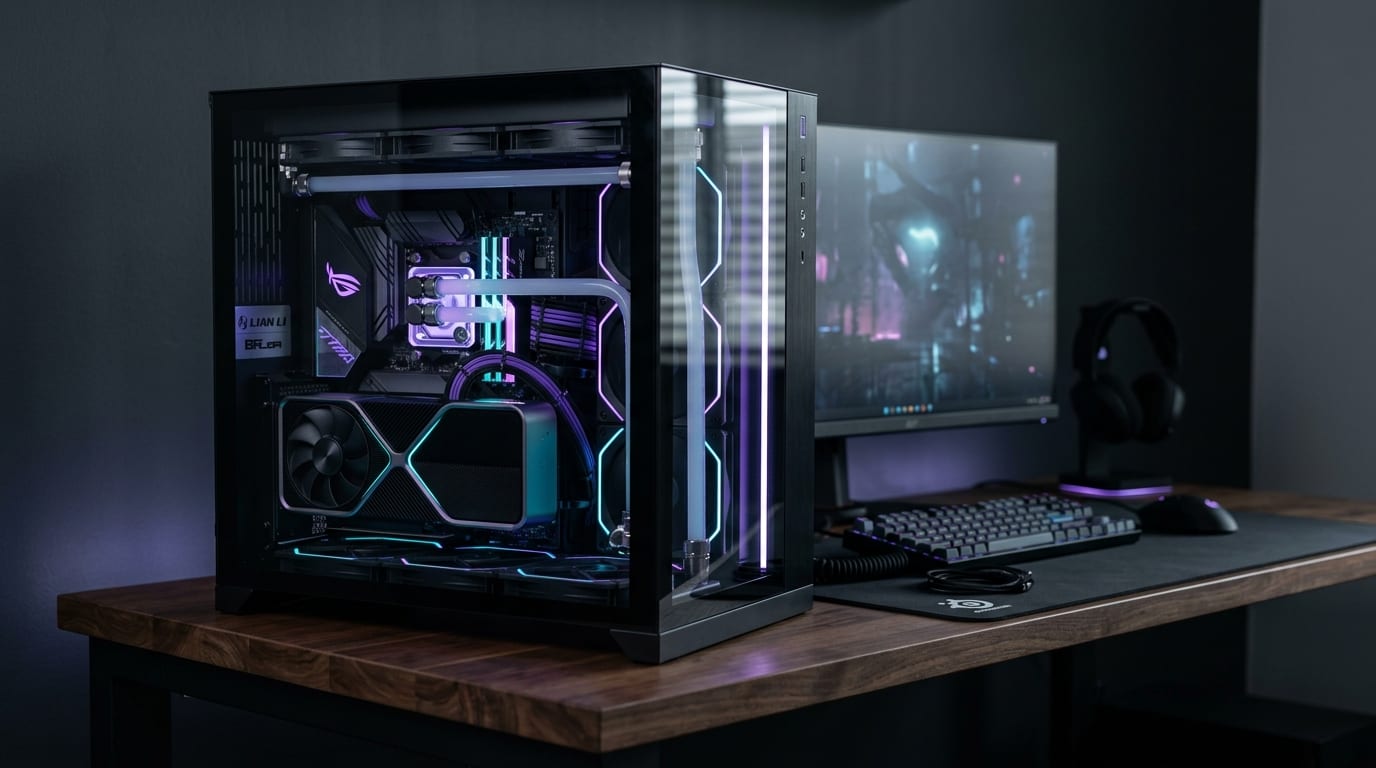
Walking into the world of gaming PCs can feel like stepping onto the showroom floor of a high-end specialty dealership where everyone speaks a foreign dialect.
Letters, numbers, and technical jargon are hurled at you from every direction: RTX, RDNA, DLSS, FSR, DDR5, AM5, PCIe 5.0, NVMe, TDP, Hertz, Gigahertz, CAS Latency, and VRM Power Phases. Prices swing wildly from under $700 in big-box retail stores to north of $4,500 in boutique custom configurators. To make matters worse, hardware forums and social media comment sections are filled with passionate opinions insisting that whatever machine you are currently considering is either overpriced, bottlenecked, or already obsolete.
Here is the fundamental truth that often gets lost beneath layers of hardware elitism and marketing hype:
> You do not need an engineering degree or thousands of dollars to enjoy a fantastic PC gaming experience. You only need an honest understanding of what games you actually want to play, a clear picture of how computer components translate your money into on-screen performance, and the ability to recognize common retail traps.
A gaming PC is simply a specialized tool designed to execute real-time simulation, compute 3D geometry, and deliver responsive frames to your eyes and hands. When you buy or build a PC, your goal is not to win an arbitrary spec-sheet contest. Your goal is to maximize your visual fidelity, framerate smoothness, and platform reliability within the budget you have set aside.
This guide is designed as an exhaustive, step-by-step masterclass for first-time buyers, console gamers making the leap to desktop gaming, and returning players seeking clarity. We will break down hardware architecture, realistic budget tiers, retail prebuilt traps, peripheral budgeting, day-one setup steps, and long-term maintenance protocols so that every dollar you invest delivers measurable performance.
---
Step 1: Mapping Your Real Gaming Profile Before Spending a Dollar
The single most expensive mistake beginners make is opening online storefronts or PC builders before identifying their real-world gaming habits.
People often buy hardware for hypothetical scenarios that never happen. A gamer might spend an extra $800 on a flagship graphics card and high-core-count processor because they imagine they might someday play heavy 4K simulations with ray tracing, when in reality they spend 90% of their free time playing competitive tactical shooters with friends on a 1080p monitor. Conversely, someone might purchase a budget machine with an 8GB graphics card, only to discover that their favorite open-world adventure stutters violently because the system runs out of video memory on modern textures.
Before looking at any computer specifications, categorize your primary gaming workload across four distinct gaming profiles:
Profile A: Competitive Fast-Twitch Esports and Tactical Shooters
- Typical Titles: Valorant, Counter-Strike 2, Apex Legends, Overwatch 2, League of Legends, Rocket League, Rainbow Six Siege, Fortnite.
- Hardware Priorities: Exceptional single-core CPU clock speed, low memory latency, fast system responsiveness, and consistent framerate delivery (144Hz to 240Hz+).
- Resolution Sweet Spot: 1080p (Full HD) or 1440p (Quad HD).
- GPU Demand: Low to moderate. In these games, pushing hundreds of frames per second shifts the workload heavily onto the CPU and memory controller. An overpowered graphics card will sit partially idle if the processor cannot dispatch draw calls fast enough.
Profile B: Cinematic AAA Open Worlds and Story-Driven RPGs
- Typical Titles: Cyberpunk 2077, Black Myth: Wukong, Baldur's Gate 3, Alan Wake 2, Starfield, Red Dead Redemption 2, Hogwarts Legacy, Grand Theft Auto VI.
- Hardware Priorities: High compute graphics card with ample video memory (VRAM), hardware ray-tracing acceleration, advanced upscaling support (DLSS or FSR), and fast NVMe solid-state storage.
- Resolution Sweet Spot: 1440p or 4K Ultra HD.
- GPU Demand: Extremely high. Every additional graphical preset, volumetric fog effect, reflection bounce, and high-resolution texture pack places heavy stress on the graphics card.
Profile C: Heavy Simulation, Strategy, and Modded Sandboxes
- Typical Titles: World of Warships, Cities: Skylines II, Microsoft Flight Simulator, Stellaris, Total War: Warhammer III, Hearts of Iron IV, heavily modded Minecraft, Assetto Corsa.
- Hardware Priorities: Massive processor cache (such as AMD 3D V-Cache), 32GB of high-speed system memory, and robust storage bandwidth.
- Resolution Sweet Spot: 1440p or Ultra-wide (3440x1440p).
- GPU Demand: Moderate to high. These titles simulate thousands of independent entities, ballistic trajectories, AI paths, and complex physics routines simultaneously.
Profile D: Dual-Purpose Creators (Gaming Plus Production)
- Typical Titles: Any modern game paired with live Twitch/YouTube streaming, video editing in DaVinci Resolve or Premiere Pro, 3D rendering in Blender, or game engine development in Unreal Engine 5.
- Hardware Priorities: High multi-core CPU capacity (8 to 16 physical cores), 32GB to 64GB of RAM, dedicated hardware encoders (such as NVIDIA NVENC or AMD AV1), and separate high-speed scratch drives.
Title: Gamer Self-Assessment: 5 Crucial Questions
Badge: Essential Step
- What specific three games will you spend the most hours playing over the next twelve months?
- What monitor resolution and refresh rate do you currently own, or plan to buy alongside the tower?
- Do you prioritize competitive motion clarity (144FPS to 240FPS) or maximum graphical eye-candy (ray tracing, ultra presets at 60FPS to 90FPS)?
- Will this machine be used strictly for recreational gaming, or do you require workstation capabilities for rendering, compiling, or broadcasting?
- Does your total budget represent the entire battle station (tower, monitor, keyboard, mouse, audio), or strictly the computer tower itself?
If you are unsure whether your desired games will run smoothly on specific hardware combinations, you can test system configurations instantly using the interactive PC Game Requirements Checker on Game Vault.
---
Step 2: The Core Anatomy of a Gaming PC (Where Your Money Goes)
Inside every desktop computer sits a collection of interconnected components. While every part plays a role in keeping the machine running, they contribute very differently to your actual gaming framerates. Understanding the hierarchy of hardware prevents you from wasting hundreds of dollars on components that offer zero visual benefit.
!Balanced PC Architecture: Balancing CPU compute, GPU rasterization, DDR5 memory, and thermal airflow
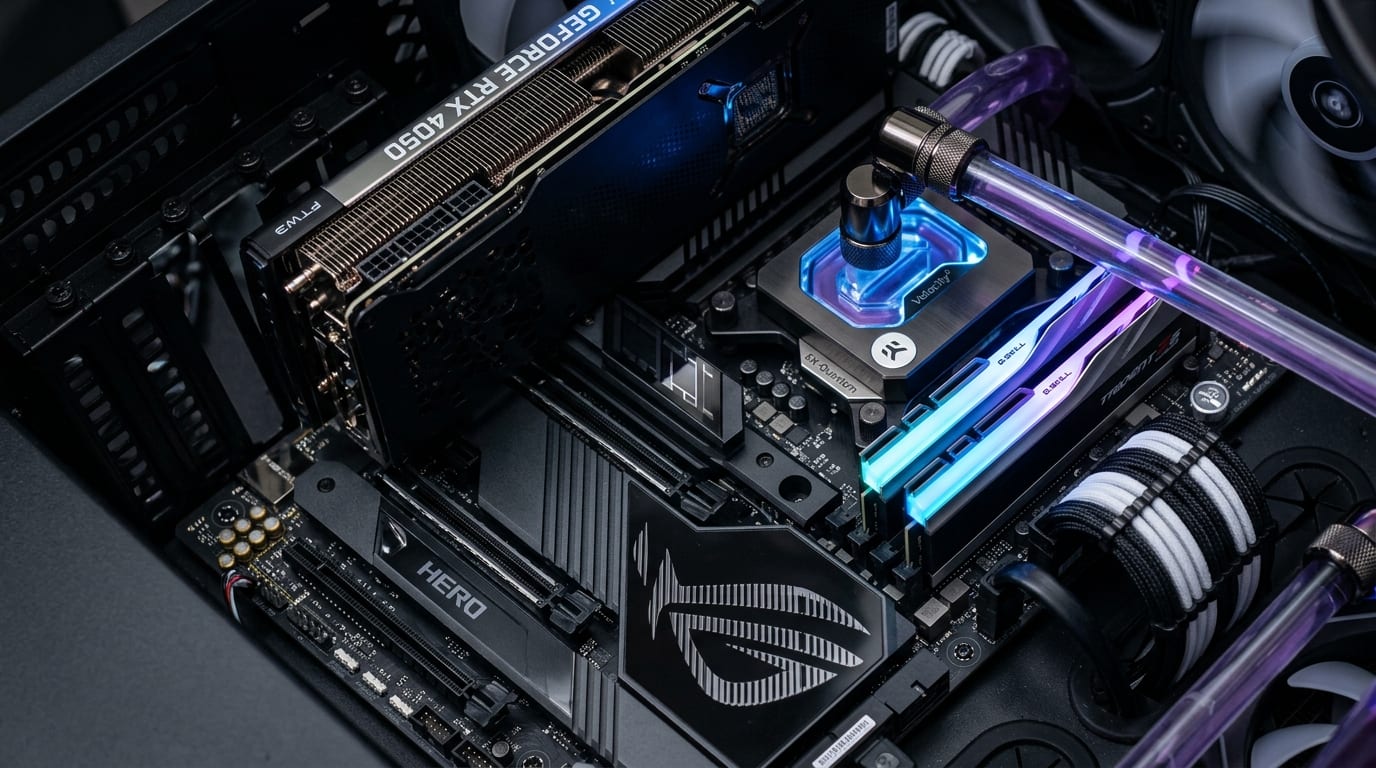
1. The Graphics Processing Unit (GPU) — 40% to 50% of Your Tower Budget
The graphics card is the engine room of any gaming computer. It is a dedicated processor containing thousands of microscopic compute cores specifically engineered to calculate geometry, render lighting, calculate pixel shaders, and output complex visual scenes dozens or hundreds of times per second.
In any dedicated gaming desktop under $2,200, the graphics card should represent the largest single expense in your budget. If you compromise on your GPU in order to purchase fancy RGB illumination, an oversized liquid cooler, or a top-tier processor you do not need, your gaming framerates will suffer immediately.
Three critical GPU specifications determine real-world capability:
- Architecture Generation: Newer graphics architectures (such as NVIDIA Blackwell RTX 50-series or AMD RDNA 4 RX 9000-series) offer significant generational leaps in energy efficiency, rasterization throughput, and ray tracing capability over older cards.
- Video Memory (VRAM) Capacity and Bus Width: Video memory stores high-resolution textures, shadow maps, geometry data, and frame buffers. In 2026, 8GB of VRAM is the bare minimum for budget 1080p gaming. Modern open-world titles running at 1440p or 4K easily consume between 10GB and 14GB of VRAM. If a graphics card runs out of VRAM, the system is forced to swap assets over the PCIe bus into system RAM, resulting in severe frame drops, hitching, and muddy, unrendered textures. For longevity, aim for 12GB to 16GB of VRAM whenever your budget allows.
- Software Ecosystem (Upscaling and Frame Generation): Modern PC gaming relies heavily on intelligent temporal upscaling and neural reconstruction. Technologies such as NVIDIA DLSS (Deep Learning Super Sampling) and AMD FSR (FidelityFX Super Resolution) render games internally at a lower resolution, then reconstruct a pristine high-resolution image using neural network models or sophisticated spatial algorithms. This effectively doubles or triples your playable framerates in demanding ray-traced titles without noticeable loss of image clarity.
2. The Central Processing Unit (CPU) — The Conductor
The CPU acts as the brain and coordinator of the entire machine. It manages operating system instructions, runs background applications, calculates game physics and character artificial intelligence, and dispatches draw calls to the graphics card.
Beginners frequently fall into the core count trap, assuming that a 16-core or 24-core processor will automatically make games run twice as fast as an 8-core chip. This is completely false. Most modern game engines rely heavily on high single-core instructions-per-clock (IPC) speed and low memory latency rather than dozens of idle worker threads. For gaming, a modern 6-core or 8-core processor is more than enough for 95% of players.
One of the most impactful CPU breakthroughs in recent years is AMD 3D V-Cache technology (found in processors such as the Ryzen 7 7800X3D and Ryzen 7 9800X3D). By physically stacking a massive pool of high-speed L3 cache directly atop the processor die, the CPU can store enormous amounts of game data locally instead of repeatedly fetching it across the motherboard from system RAM. This dramatically raises minimum 1% and 0.1% framerates, virtually eliminating the micro-stutters that plague competitive shooters and large-scale simulation games.
3. System Memory (RAM) — Capacity, Speed, and Channel Architecture
RAM provides ultra-fast temporary working space for the operating system and active game files. When evaluating memory, three factors matter:
- Capacity: 16GB is the entry-level baseline. It is sufficient for casual esports and older games, but modern releases running alongside Discord, web browsers, and background utilities quickly push memory usage past 14GB. In 2026, 32GB of RAM is the standard sweet spot for worry-free gaming, multitasking, and stability. 64GB is generally unnecessary unless you engage in professional video editing, heavy virtual machines, or extreme flight simulations with hundreds of gigabytes of custom add-on scenery.
- Generation and Frequency: DDR5 has fully replaced DDR4 as the mainstream standard for modern platforms (AMD AM5 and Intel Core Ultra / LGA 1851). The sweet spot for DDR5 memory performance and stability is currently 6000MT/s with a low CAS latency rating of CL30.
- Dual-Channel Configuration: Never purchase a gaming PC configured with a single stick of RAM (for example, 1x16GB instead of 2x8GB or 2x16GB). Running in single-channel mode cuts the memory bandwidth between your CPU and RAM in half, causing frame rate drops of up to 20% to 25% in CPU-bound games. Always ensure your system utilizes two matched memory sticks running in dual-channel mode.
4. Storage (NVMe M.2 Solid-State Drives)
The era of mechanical spinning hard drives (HDDs) in gaming computers is officially over. Modern games are engineered around the instant data throughput of NVMe solid-state drives. In titles using technologies such as DirectStorage, the graphics card streams high-resolution textures directly from the SSD into video memory in milliseconds. Installing a modern game on an older mechanical drive or slow external drive leads to sluggish loading screens, visible pop-in of environmental objects, and severe audio synchronization bugs.
Aim for a PCIe 4.0 or PCIe 5.0 M.2 NVMe SSD. In terms of capacity, 1TB is the entry baseline, but because modern blockbuster games routinely require between 80GB and 150GB of installation space each, a 2TB NVMe SSD provides the comfortable breathing room needed to keep a healthy game library without constantly deleting and redownloading titles.
5. The Power Supply Unit (PSU) — The Unsung Hero
The power supply converts alternating current from your wall outlet into stable, clean direct current for your sensitive electronics. It does not produce a single extra frame per second, which tempts many inexperienced buyers into skimping on it. This is a dangerous mistake. A low-quality power supply with inadequate internal safety protections can fail under heavy load, potentially destroying every connected component in your chassis.
When evaluating a power supply, look for:
- Continuous Wattage Headroom: Your power supply should exceed the calculated maximum wattage of your components by at least 20% to 30%. This keeps the unit operating in its peak electrical efficiency curve, minimizes cooling fan noise, and leaves headroom for future graphics card upgrades.
- 80-Plus Efficiency Certifications: Look for 80-Plus Bronze as a budget minimum, with 80-Plus Gold or Platinum preferred for systems over $1,200. These ratings verify electrical efficiency, meaning less wasted power dissipated as heat inside your room.
- ATX 3.0 / 3.1 Compliance: Modern graphics cards can produce instantaneous millisecond power spikes (known as transient spikes) that exceed their rated TDP. Power supplies conforming to the ATX 3.0 or ATX 3.1 standard are engineered to absorb these spikes without tripping emergency shutoffs, and feature native 12V-2x6 power cabling for modern high-power GPUs.
6. Motherboard, Thermals, and Airflow
The motherboard connects all components together, distributing power through its Voltage Regulator Modules (VRMs) and routing data across high-speed PCIe lanes. Ensure your motherboard features adequate heatsinks over the VRMs so the processor does not throttle its clock speed under extended gaming sessions.
For cooling and case selection, prioritize function over aesthetics. A computer case with a solid glass front panel suffocates intake fans, trapping hot air around your graphics card and processor. Look for cases with high-porosity mesh front panels, magnetic dust filtration, and at least two front intake fans paired with one rear exhaust fan. Creating slight positive air pressure (more filtered air pushed into the case than pulled out) prevents dust from being sucked into unfiltered seams and crevices.
---
Step 3: The Complete Battle Station Equation (Peripheral Budgeting)
A computer tower does not produce an image, deliver sound, or accept commands by itself. Yet countless beginners spend 100% of their saved funds on a high-end desktop tower, only to plug it into a ten-year-old 60Hz office monitor with a generic rubber-dome office mouse.
This is a tragic waste of hardware. Your monitor is the visual lens through which all your computer graphical horsepower is experienced. If your graphics card outputs 160 frames per second in an open-world adventure, but your monitor can only refresh 60 times per second, you are literally throwing away over 60% of the visual performance you paid for.
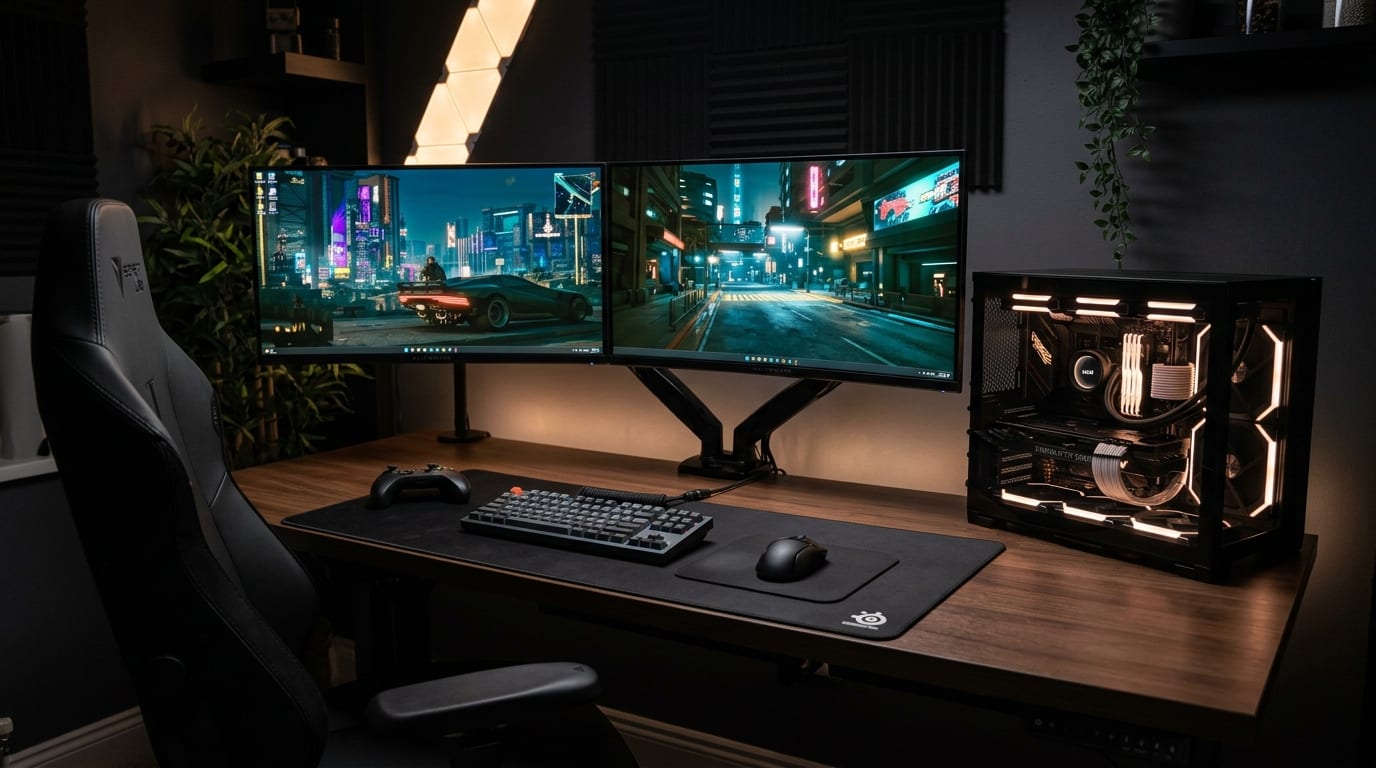
When establishing your total budget, allocate funds using the 70/20/10 battle station formula:
| Budget Allocation | Component Group | Practical Purpose & Quality Standards |
| :--- | :--- | :--- |
| 65% to 75% | The Desktop Tower | CPU, GPU, Motherboard, RAM, SSD, Power Supply, Chassis, and Cooling. |
| 15% to 20% | The Gaming Monitor | Fast IPS, VA, or OLED panel with 144Hz to 240Hz refresh rate, low response time, and VRR (G-Sync or FreeSync). |
| 10% to 15% | Essential Peripherals | Lightweight optical gaming mouse, mechanical keyboard, comfortable headset, and a quality desk mat. |
Monitor Selection Guide: The Three Critical Specs
1. Refresh Rate (Hertz): A standard office monitor refreshes at 60Hz (60 images per second). A 144Hz, 165Hz, or 240Hz gaming display refreshes more than twice as often, resulting in silky-smooth motion, reduced eye fatigue, and significantly lower input latency. The jump from 60Hz to 144Hz+ is universally recognized as one of the single most dramatic upgrades in gaming.
2. Panel Technology:
- IPS (In-Plane Switching): The gold standard for value and versatility. Excellent color accuracy, wide viewing angles, and fast pixel response times.
- VA (Vertical Alignment): Higher contrast ratios and deeper blacks than IPS, making them popular for curved screens and dark room gaming, but can exhibit minor dark-level motion smearing in fast competitive shooters.
- OLED / QD-OLED: The premium pinnacle of display technology. Infinite contrast ratios, true instantaneous pixel response times (0.03ms), and breathtaking HDR highlights, though at a significantly higher price point.
3. Variable Refresh Rate (VRR / FreeSync / G-Sync Compatible): Ensures the monitor refreshes dynamically in lockstep with the frames delivered by your graphics card. This completely eliminates screen tearing and minimizes perceived stutter when framerates fluctuate during intense game sequences.
---
Step 4: The 4 Proven Budget Brackets (What Real Money Buys in 2026)
To give you realistic expectations of what your money will achieve, here is a breakdown of the four established price-to-performance tiers in modern PC gaming:
| Budget Tier | Target Resolution | Expected Framerates | Recommended CPU Class | Recommended GPU Class | Memory & Storage Standard | Ideal Gamer Profile |
| :--- | :--- | :--- | :--- | :--- | :--- | :--- |
| Sub-$850 | 1080p Full HD | 144+ FPS Esports / 60+ FPS Modern AAA | AMD Ryzen 5 7600 / Intel Core i5-13400F | NVIDIA RTX 4060 / 5060 or AMD RX 7600 XT | 16GB–32GB RAM / 1TB NVMe SSD | First-time PC buyers, competitive esports players, students. |
| $1,100 – $1,600 | 1440p Quad HD | 120+ FPS Ultra / 200+ FPS Esports | AMD Ryzen 7 7700X / Intel Core i5-14600K | NVIDIA RTX 5070 / 4070 Super or AMD RX 9070 | 32GB DDR5-6000 / 2TB NVMe SSD | The mainstream sweet spot; gamers who want stunning visual clarity without overspending. |
| $1,800 – $2,500 | 1440p Ultra / 4K | 144+ FPS 1440p / 60–100 FPS 4K Ultra | AMD Ryzen 7 7800X3D / 9800X3D | NVIDIA RTX 5080 / 4080 Super or AMD RX 9070 XT | 32GB DDR5-6000 / 2TB Gen 4 SSD | High-refresh enthusiast gaming, heavy ray tracing, simulation enthusiasts. |
| $3,000+ | Uncompromising 4K | 120+ FPS 4K Max Ray Tracing | AMD Ryzen 9 9950X3D / Intel Core Ultra 9 285K | NVIDIA GeForce RTX 5090 (32GB GDDR7) | 64GB DDR5 / 4TB Gen 5 SSD | Flagship halo builds, flight simulators, VR workstations, professional creators. |
Tier 1: The Smart Budget Esports Machine (Sub-$850)
This tier proves that you do not need to spend thousands to have a wonderful gaming experience. Systems in this range excel at 1080p gaming, tearing through popular competitive titles such as Valorant, Rocket League, and Apex Legends at 144FPS to 200FPS+, while handling modern AAA open-world titles at 1080p medium-to-high settings at a solid 60FPS.
The key to success in this tier is discipline: avoid spending money on liquid cooling, excessive RGB lighting, or expensive motherboard chipsets. Direct every available dollar into a solid 6-core processor (such as the Ryzen 5 7600) and an entry-level modern GPU (such as an RTX 5060 or RX 7600 XT).
Tier 2: The 1440p High-Refresh Sweet Spot ($1,100 to $1,600)
For the vast majority of dedicated PC gamers, this tier represents the absolute peak of price-to-performance value. Moving from 1080p to 1440p Quad HD increases visual pixel density by 77%, producing razor-sharp detail, expansive field of view, and crisp environmental textures without requiring the brutal hardware horsepower demanded by 4K.
In this price range, you receive a modern 8-core CPU, 32GB of high-speed DDR5 memory, a spacious 2TB NVMe SSD, and a capable mid-range graphics card (such as an NVIDIA RTX 5070 or AMD RX 9070). These systems run virtually any modern title at 1440p high or ultra settings with smooth 100FPS+ framerates, while taking full advantage of DLSS and FSR for ray-traced lighting.
Tier 3: The High-Fidelity 1440p Ultra / 4K Machine ($1,800 to $2,500)
At this price point, you are stepping into high-end enthusiast territory. These machines are engineered for players who want to crank every graphical slider to maximum, enable path-traced lighting, and drive high-refresh ultra-wide monitors (3440x1440p) or 4K displays.
Systems here typically feature top-tier gaming processors such as the AMD Ryzen 7 7800X3D or Ryzen 7 9800X3D, paired with heavy-hitting graphics cards like the NVIDIA RTX 5080 or AMD RX 9070 XT. Premium components become standard: high-airflow chassis, whisper-quiet 240mm or 360mm AIO liquid cooling, premium 850W Gold modular power supplies, and generous expansion connectivity.
Tier 4: The Uncompromising Halo Flagship ($3,000+)
This tier is reserved for gamers with zero budget constraints who demand the absolute maximum visual fidelity available in consumer computing. Anchored by the formidable NVIDIA GeForce RTX 5090 with its massive 32GB pool of GDDR7 memory, these machines power unconstrained native 4K gaming, advanced ray tracing and path tracing, multi-monitor flight simulation rigs, and professional creative rendering pipelines.
Unless you own a 4K 144Hz+ OLED display or engage in heavy 3D rendering workflows, spending this amount of money produces diminishing returns. For 90% of gamers, a balanced Tier 2 or Tier 3 system delivers an experience that is 85% to 90% as satisfying for half the financial outlay.
To configure and price out your ideal custom build across any of these tiers, use our free Gaming PC Builder, which automatically calculates component compatibility, power requirements, and balance scores.
---
Step 5: The 8 Most Common Traps Beginners Fall Into (and How to Avoid Them)
The retail prebuilt PC market can be a minefield. Unscrupulous manufacturers often market flashy computers that look stunning in product photography but hide serious cost-cutting compromises beneath the surface.
Here are the eight most common traps that catch first-time buyers:
Title: The 8 Most Costly Prebuilt Traps
Badge: Buyer Warning
1. The Flagship CPU / Weak GPU Trap: Advertising an elite Intel Core i9 or Ryzen 9 processor alongside a low-tier graphics card. For gaming, this yields abysmal framerates because the graphics card bottlenecks the entire machine.
2. The Single-Channel RAM Penalty: Installing a single 16GB stick of memory instead of two 8GB sticks. This cuts memory bandwidth in half, causing severe stuttering in modern games.
3. The Mystery Power Supply: Using generic, unrated, non-modular power supplies with cheap ketchup-and-mustard wiring that struggle to handle transient power spikes and lack safety certifications.
4. Proprietary Motherboards and Cases: Major office-OEM brands often use non-standard motherboard form factors and proprietary power connectors, making it impossible to upgrade components down the road.
5. The Suffocating Glass Case: Aesthetic cases featuring solid glass or acrylic front panels with microscopic side vents. Components overheat, fans spin at maximum jet-engine speeds, and hardware throttles its clock speeds.
6. The Tiny SSD Plus Slow HDD Combo: Providing an undersized 256GB boot drive paired with a 1TB mechanical spinning hard drive. Modern games installed on the HDD suffer from terrible load times and texture pop-in.
7. Under-Spec CPU Coolers: Installing an entry-level OEM aluminum heatsink on a hot-running processor, causing temperatures to immediately reach 95C under gaming load.
8. Bloatware and Telemetry Preinstalls: Filling the Windows installation with trial antivirus software, manufacturer toolbars, and background telemetry that quietly consumes CPU cycles and memory.
Compare these two real-world prebuilt listings often found at similar $1,299 price points:
| Specification Element | The Marketing Retail Trap | The Balanced Smart Purchase |
| :--- | :--- | :--- |
| Processor (CPU) | Intel Core i9-14900F (Impressive name, but locked and unnecessary) | AMD Ryzen 7 7700X or Ryzen 5 7600X (Fast, efficient, balanced) |
| Graphics Card (GPU) | NVIDIA GeForce RTX 3050 (Underpowered entry-level GPU) | NVIDIA GeForce RTX 5070 or AMD RX 9070 (High-performance modern GPU) |
| System Memory | 1x 16GB DDR5 4800MHz (Single-channel, slow frequency) | 2x 16GB (32GB) DDR5 6000MHz CL30 (Dual-channel, optimal speed) |
| Storage Solution | 256GB NVMe SSD + 1TB 5400RPM Mechanical HDD | 2TB High-Speed PCIe 4.0 NVMe SSD (Uniform fast game storage) |
| Power Supply Unit | 500W Unbranded Non-Rated OEM Power Supply | 750W 80-Plus Gold Certified ATX 3.0 Modular Power Supply |
| Motherboard & Chassis | Proprietary OEM motherboard inside a solid acrylic chassis | Standard ATX B650 motherboard inside a high-airflow mesh chassis |
| Real 1440p Gaming | 28 to 42 FPS Average (Stuttering, severe bottleneck) | 110 to 145 FPS Average (Silky smooth, high visual presets) |
Notice how the balanced system delivers nearly triple the real-world gaming performance at the exact same dollar price point, simply because its component budget was allocated intelligently rather than poured into an oversized processor and marketing slogans.
---
Step 6: Prebuilt Desktop vs. Building It Yourself (The Honest Truth)
One of the most persistent debates in the PC community is whether beginners should buy a prebuilt desktop or build their own computer from individual parts.
Both approaches have genuine merits, and there is no single right answer for everyone:
| Comparison Metric | Prebuilt Desktop Solution | Building It Yourself (DIY) |
| :--- | :--- | :--- |
| Initial Assembly Time | Instant gratification. Plug in power and monitor, turn it on. | 3 to 6 hours of careful research, assembly, and cable routing. |
| Technical Knowledge Needed | Minimal. Understanding basic ports and display connections. | Moderate. Installing CPU, applying thermal paste, connecting front panel headers. |
| Cost Efficiency | Typically 10% to 15% higher cost due to assembly and vendor margin. | Maximum cost efficiency. Every dollar goes directly into component hardware. |
| Warranty and Support | Single point of contact. One warranty covers the entire system. | Individual warranties per component (3 to 10 years depending on part). |
| Component Transparency | Requires careful inspection of prebuilt spec sheets to avoid cheap parts. | 100% control over every single screw, fan, power supply, and memory timing. |
| Troubleshooting Experience | Vendor customer support can handle hardware repairs or replacement. | You are your own tech support if a component arrives dead or fails to boot. |
If you have busy commitments, anxiety about handling delicate electronic pins, or simply value having a single customer service phone number to call if something malfunctions, buying a well-reviewed prebuilt desktop built from standard off-the-shelf parts (such as models from iBUYPOWER, CyberPowerPC, or Corsair) is an entirely valid choice.
If you enjoy tactile projects, want to maximize every single dollar, and relish the satisfaction of knowing every internal component of your machine, building your own computer is one of the most rewarding hobbies in technology.
---
Step 7: Day-One Setup Guide: What to Do When Your PC Arrives
Whether you purchased a prebuilt desktop or assembled your own rig, what you do during the first hour of setting up your machine determines its performance, cooling efficiency, and longevity.
Follow this seven-step checklist to avoid common day-one mistakes:
Title: First-Day PC Setup Checklist
Badge: Setup Protocol
- Remove Internal Expanding Foam: If your prebuilt computer shipped with expanding protective foam inside the glass chamber, gently unscrew the side panel and carefully extract the foam before powering on. Never turn on a computer with packaging material inside.
- Check Internal Cable Connections: Shipping trucks experience intense vibration. Inspect the interior to ensure the graphics card is firmly clicked into its PCIe slot, memory sticks are seated securely in their clips, and power cables are pushed firmly into the GPU and motherboard.
- Connect Display Cable to the GPU, NEVER the Motherboard: This is the number-one mistake made by new PC owners. Desktop motherboards have HDMI and DisplayPort outputs connected to the CPU weak integrated graphics. You must plug your monitor display cable into the horizontal ports on your dedicated graphics card located lower down on the rear of the tower.
- Enable XMP or EXPO in Your Motherboard BIOS: By default, high-speed DDR5 memory runs at safe baseline JEDEC frequencies (often 4800MT/s). Restart your PC, press the Delete or F2 key repeatedly to enter the BIOS, find the XMP (Intel) or EXPO (AMD) setting, toggle it to Profile 1, and save. This unlocks the full rated 6000MT/s speed you paid for.
- Set Your Monitor High Refresh Rate in Windows: Windows often defaults newly connected monitors to 60Hz. Right-click your desktop, select Display Settings, navigate to Advanced Display, and change the refresh rate dropdown to your monitor maximum capability (for example, 144Hz, 165Hz, or 240Hz).
- Install Clean Graphics Drivers: Download the latest graphics drivers directly from the official NVIDIA or AMD websites. Perform a clean installation to ensure your GPU has all modern game optimizations and stability patches.
- Purge Preinstalled Vendor Bloatware: Open Windows Settings > Installed Apps. Uninstall any trial antivirus packages, unnecessary manufacturer utilities, and third-party promotional software that can run background tasks and slow down your machine.
---
Step 8: Long-Term Maintenance: Keeping Your PC Running at Peak Performance
Unlike home consoles that sit enclosed on television stands for half a decade without maintenance, a gaming desktop pulls significant cubic feet of air through its chassis every hour. Over time, atmospheric dust and pet hair accumulate against intake mesh filters and heatsink fins, insulating heat and causing fans to work harder and louder.
Follow these simple maintenance habits to keep your PC operating like new for years:
- Monthly Filter Dusting: Once every four to six weeks, remove the magnetic mesh dust filters from the front and top of your case, wipe them down with a microfiber cloth or rinse and dry them, and place them back on the chassis.
- Biannual Internal Compressed Air Blowout: Every six months, take your tower into an open area, remove the side panel, and use a can of compressed air or an electric data duster to blow dust out of heatsink fins, graphics card fans, and power supply intakes. Hold fan blades gently with your finger while blowing air across them to prevent them from spinning faster than their bearing tolerances.
- Temperature Sanity Checks: Download a lightweight, free hardware sensor monitor (such as HWMonitor or HWiNFO64). Under heavy gaming load, modern CPUs should comfortably operate between 65C and 85C, while graphics cards should stay between 60C and 78C. If you notice temperatures climbing into the 90s accompanied by aggressive fan noise, check for clogged dust filters or consider re-applying thermal paste.
---
Frequently Asked Questions (FAQ) for First-Time PC Buyers
Should I wait for the next generation of hardware before buying?
In the tech world, there is always a new processor, graphics card, or memory standard arriving in six to nine months. If you constantly wait for the next release, you will never buy a computer. Buy when you have the budget and the desire to play. Modern hardware platforms are mature, and a well-chosen balanced machine purchased today will easily deliver high-quality gaming for four to five years.
Is liquid cooling necessary, or is air cooling fine?
For modern mid-range gaming CPUs (such as the AMD Ryzen 5 7600, Ryzen 7 7700X, or Intel Core i5-14600K), a quality $35 to $50 dual-tower air cooler (such as a Thermalright Peerless Assassin) is more than sufficient, highly reliable, and has zero risk of pump failure or liquid leakage. Liquid cooling (AIOs) is primarily beneficial for high-power enthusiast chips (such as Intel Core i9 / Core Ultra 9 or heavily overclocked systems) or for gamers who prefer clean, minimalist aesthetic cable routing inside tempered glass cases.
Can I upgrade my gaming PC in the future?
Yes, provided you purchase a system built on standard non-proprietary components. If you choose an AMD AM5 motherboard or a standard ATX power supply, you can easily upgrade your storage by clicking a second M.2 drive into an empty slot, double your RAM by adding two matched sticks, or replace your graphics card four years from now with a modern mid-range GPU without buying an entirely new computer.
Do I need an expensive sound card or dedicated audio amplifier?
No. Modern gaming motherboards feature competent built-in audio codecs that drive standard gaming headsets and desktop speakers with clear audio fidelity. A dedicated external USB DAC or amplifier is only necessary if you own high-impedance studio audiophile headphones (250 ohms or higher) or do professional audio mastering.
---
Ready to Explore Specific Systems?
Now that you understand component balance, realistic budget tiers, and how to avoid retail traps, you are ready to evaluate the specific machines that lead the market today.
Continue to our definitive hardware roundup: The Best Gaming PCs in 2026: Top Choices for Gaming Now and in the Future, where our editorial team breaks down the standout prebuilt configurations across every budget point.
Have questions about a specific listing or need feedback on your custom part list? Join the conversation on the Game Vault Community Forum or consult our Vault AI Assistant for instant hardware recommendations.