
Last checked: September 27, 2026. This diagnostic and optimization blueprint incorporates verified hardware profiling methods, Windows 11 24H2 scheduler mechanics, driver-level VRR pipelines, and Unreal Engine 5 shader compilation protocols.
The Illusion of Average FPS: Why Frametime Consistency Trumps Raw Numbers
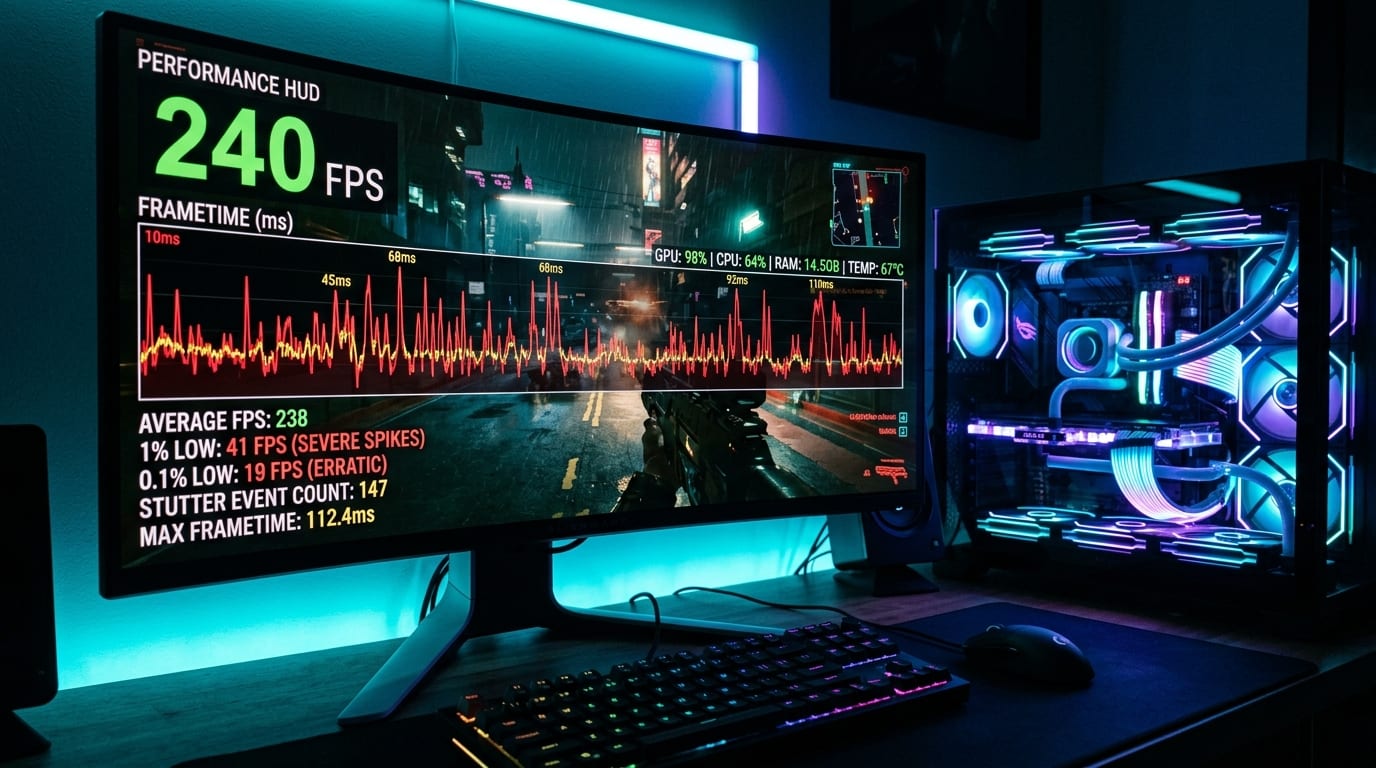
You boot up your brand-new enthusiast rig. The top-left corner overlay displays a reassuring `185 FPS`. Yet, as soon as you sprint across an open courtyard, swing your crosshair 180 degrees, or trigger an explosive spell, your display hitches. The motion stutters, your crosshair micro-teleports past your target, and the game feels more like 35 FPS than 185 FPS.
What you are experiencing is not a failure of raw graphical horsepower—it is a catastrophic failure of frametime consistency.
Average FPS is an arithmetic abstraction that masks moment-to-moment stutter:
- The 1-Second Deception: A monitor running at 144 Hz expects a new frame precisely every 6.94 milliseconds. If your graphics card renders 143 frames in rapid succession (at 3 ms each) and then chokes on an uncompiled shader for 420 milliseconds, your total frame count for that second is still 144. The Steam or GeForce Experience overlay proudly reports "144 FPS", even though the human eye perceived an agonizing half-second freeze.
- 1% Lows: The average framerate of the slowest 1% of frames during a benchmark run. This metric reflects your system's baseline responsiveness during heavy combat encounters or dense volumetric smoke.
- 0.1% Lows: The single slowest frame out of every 1,000 frames. This is where perceived micro-stutters, mouse hitching, and camera judder originate. When your average FPS is 165 but your 0.1% low drops to 14 FPS, gameplay feels undeniably choppy.
Title: Average FPS vs 0.1% Lows (Frametime Stability)
Badge: Pacing Benchmarks
Smooth System (Locked G-Sync): 141 FPS Avg | 141 | emerald | 0.1% Low: 128 FPS (True butter-smooth consistency)
Uncapped Stuttering Rig: 195 FPS Avg | 195 | amber | 0.1% Low: 22 FPS (Severe micro-stutters & camera hitching)
VRAM-Thrashed Setup: 110 FPS Avg | 110 | rose | 0.1% Low: 9 FPS (Catastrophic PCIe texture paging freezes)
Target Frametime Delivery by Refresh Rate
To perceive motion as completely smooth, every consecutive frame must arrive within a fraction of a millisecond of your display's hardware refresh interval:
| Display Refresh Rate | Ideal Frametime Target | Acceptable Variance | Severe Stutter Threshold |
|---|---|---|---|
| 60 Hz | 16.67 ms | ± 1.5 ms | > 25.0 ms |
| 120 Hz | 8.33 ms | ± 0.8 ms | > 14.0 ms |
| 144 Hz | 6.94 ms | ± 0.6 ms | > 11.5 ms |
| 165 Hz | 6.06 ms | ± 0.5 ms | > 9.5 ms |
| 240 Hz | 4.17 ms | ± 0.3 ms | > 6.5 ms |
| 360 Hz | 2.78 ms | ± 0.2 ms | > 4.5 ms |
---
The 6 Primary Root Causes of Micro-Stuttering in Modern PC Gaming
Before tweaking random settings or reinstalling Windows, identify which of the six major architecture-level bottlenecks is stalling your frame pipeline:
1. Shader Compilation & Unreal Engine 5 PSO Hitches
In modern DirectX 12 and Vulkan titles, game developers have moved shader compilation from driver install-time to runtime. When a visual effect (muzzle flash, magic spell, dynamic weather) appears on screen for the first time, your CPU must compile the Pipeline State Object (PSO) in real-time. If the engine did not pre-compile the shader during the main menu, the rendering pipeline halts completely, producing a single 50ms to 200ms frametime spike.
2. Asymmetric CPU Scheduling & Heterogeneous Core Contention
Modern PC architectures no longer use identical CPU cores:
- Intel 12th/13th/14th/Core Ultra Processors: Feature high-speed Performance (P) cores and background Efficiency (E) cores. When Windows Thread Director erroneously assigns a critical game worker thread or audio thread to an E-core, frametimes instantly double.
- AMD Dual-CCD Processors (Ryzen 9 7900X3D / 7950X3D / 9950X3D): Feature one CCD equipped with massive 3D V-Cache and a second CCD running higher clocks without extra cache. When threads migrate across the inter-CCD infinity fabric, memory latency spikes by 50-70ns, causing sharp micro-hitching.
3. VRAM Thrashing & PCIe Bus Saturation
Modern AAA titles (such as The Last of Us Part I, Hogwarts Legacy, and Alan Wake 2) consume 11GB to 14GB of video memory at 1440p and 4K. If your graphics card possesses only 8GB or 12GB of VRAM and the game allocates more than your dedicated pool, Windows begins paging textures over the PCIe bus into system RAM. System RAM is an order of magnitude slower than GDDR6X, causing 0.1% lows to collapse into single digits.
4. Display Desynchronization & Uncapped FPS Overruns
Many gamers disable V-Sync and leave framerates completely uncapped, believing higher numbers always reduce input lag. However, when your GPU pushes 190 FPS on a 144 Hz G-Sync monitor:
1. The framerate exceeds the upper boundary of your monitor's Variable Refresh Rate (VRR) window.
2. G-Sync automatically disengages.
3. The display reverts to fixed refresh behavior, introducing visual tear lines and buffer hitching.
5. High Mouse Polling Rates & Background RGB Software (DPC Latency)
Gaming mice with 4,000 Hz or 8,000 Hz polling rates send thousands of hardware interrupts per second to the CPU. If your CPU is already running near 90% utilization in an open-world title, processing 8,000 USB interrupts per second starves the game's render thread. Furthermore, background utilities like Corsair iCUE, Asus Armoury Crate, Razer Synapse, and NZXT CAM constantly poll hardware sensors via slow WMI calls every 500ms, creating periodic frametime ripples.
6. Storage I/O Bottlenecks & DirectStorage Asset Decompression
Open-world titles stream dozens of gigabytes of 4K textures, audio files, and geometry meshes as your character moves. Running a modern 100GB+ title on a legacy SATA SSD, a spinning hard disk, or a thermal-throttling NVMe SSD without heatsinks causes asset streaming hitches whenever entering new game zones.
---
The Definitive 7-Step Troubleshooting & Optimization Protocol
Follow these seven validated steps in order to diagnose and permanently resolve frametime spikes:
Step 1: The Golden VRR Triangle (G-Sync + Driver V-Sync + Frame Cap)
To achieve truly flat frametime pacing with near-zero input latency, implement the Blurbusters VRR Golden Rule:
Title: The 3-Step G-Sync Synchronization Rule
Badge: Frame Pacing Foundation
- 1. Enable G-Sync / FreeSync in GPU Driver: Open Nvidia Control Panel (or AMD Software) > Set Up G-SYNC > Enable for Windowed and Full Screen mode.
- 2. Enable V-Sync ONLY in GPU Driver (Disable in Game): Turn V-Sync ON in Nvidia Control Panel / AMD Software globally. Ensure in-game V-Sync is turned OFF. Driver-level V-Sync acts as a frame-pacing timing mechanism without adding the double-buffered input delay of in-game V-Sync.
- 3. Cap Framerate 3-4 FPS Below Refresh Rate: Use Nvidia Control Panel Max Frame Rate, AMD Radeon Chill, or RivaTuner Statistics Server (RTSS) to cap FPS:
- 144 Hz Display: Cap at 141 FPS
- 165 Hz Display: Cap at 161 FPS
- 240 Hz Display: Cap at 237 FPS
- 360 Hz Display: Cap at 354 FPS
Why this works: The frame cap keeps the GPU rendering within the active VRR window 100% of the time. Driver V-Sync prevents tear lines from floating to the bottom edge of the screen, and the frame cap prevents the driver from queueing up buffer latency.
Step 2: Expand Driver Shader Cache Size to 10GB or 100GB
By default, graphics drivers allocate a meager 1GB to 4GB for compiled shader storage. Once you install three or four modern games, the driver continually evicts older shaders to make room for new ones. Every time you revisit an older zone, the game re-compiles the evicted shaders, causing recurring stutters.
- Fix: Open Nvidia Control Panel > Manage 3D Settings > Global Settings > Shader Cache Size > Change from Driver Default to 10 GB (or 100 GB if you have abundant SSD space).
- AMD Users: Open AMD Software > Gaming > Graphics > Reset Shader Cache to clear corrupted shader tables after major game updates.
- Pro Tip: In titles with a "Compiling Shaders" progress bar in the main menu (e.g., The Last of Us, Call of Duty, Horizon Forbidden West), never jump into a match until the compilation bar reaches 100%.
Step 3: Tame Hybrid CPU Scheduling (Process Lasso & Core Parking)
Prevent Windows from scheduling heavy game render threads onto low-frequency efficiency cores:
- For Intel 12th/13th/14th Gen CPUs:
1. Download and install Process Lasso.
2. Launch your game, right-click its main executable in Process Lasso > CPU Affinity > Always > Disable E-Cores.
3. This guarantees the game utilizes only high-frequency Performance cores with full L3 cache access.
- For AMD Ryzen 7900X3D / 7950X3D:
1. Ensure the AMD Chipset Driver (specifically the 3D V-Cache Performance Optimizer driver) is updated to the latest revision.
2. Ensure Xbox Game Bar is enabled in Windows Settings. Xbox Game Bar identifies games and automatically parks the non-V-Cache CCD, locking the game onto the high-speed 3D V-Cache cores.
Step 4: Mitigate VRAM Spillover & Enable Resizable BAR
When VRAM is exhausted, stutter is inevitable. Take immediate corrective action:
- Verify Resizable BAR (ReBAR) / Smart Access Memory (SAM):
- Open GPU-Z and check the bottom right corner for "Resizable BAR: Enabled".
- If disabled, reboot into motherboard BIOS, enable "Above 4G Decoding" and "Re-Size BAR Support". ReBAR allows the CPU to access the entire GPU VRAM pool in one continuous block rather than 256MB fragments, drastically reducing texture streaming latency.
- Drop Textures One Notch:
- In games with massive texture packs, drop Texture Quality from Ultra to High. In 90% of modern engines, High uses identical texture resolution while halving memory footprint, freeing up 2GB to 4GB of VRAM and halting PCIe memory spillover.
- Turn Off Ray Traced Reflections on 8GB/12GB GPUs:
- Ray tracing requires allocating massive Bounding Volume Hierarchy (BVH) acceleration structures in VRAM. Disabling ray-traced reflections often recovers 2.5GB of dedicated VRAM.
Step 5: Eliminate DPC Latency Spikes (RGB Daemons & Mouse Polling)
Deferred Procedure Call (DPC) latency occurs when background device drivers monopolize CPU cycles, preventing the audio and graphics subsystems from delivering frames on time:
- Download LatencyMon: Run the test while gaming. If you see high DPC execution times (> 1000 µs), identify the offending driver (often `nvlddmkm.sys`, `ndis.sys`, or `wdf01000.sys`).
- Kill Peripheral Bloatware: Close background software:
- Asus Armoury Crate (replace with lightweight open-source alternatives like G-Helper)
- Corsair iCUE (set hardware profiles to onboard memory and close the app)
- Razer Synapse & NZXT CAM
- Lower Mouse Polling to 1,000 Hz or 2,000 Hz:
- If your mouse supports 4,000 Hz or 8,000 Hz polling, switch it to 1,000 Hz. Benchmarks show 8,000 Hz polling can reduce 0.1% lows by up to 28% in CPU-intensive games like Valorant, Apex Legends, and Warzone.
Step 6: Configure Windows 11 Gaming Subsystems
Fine-tune native Windows 11 settings to prioritize real-time game performance:
- Windows Game Mode: Keep ON. In Windows 11 23H2/24H2, Game Mode effectively stops background Windows Updates and prioritizes CPU execution threads for the active game.
- Hardware-Accelerated GPU Scheduling (HAGS):
- Keep ON if you utilize DLSS 3 Frame Generation or modern DX12 titles.
- Test OFF if you play older DX11 competitive shooters and notice unexplained frametime jitter.
- Disable Fullscreen Optimizations: Right-click the game `.exe` > Properties > Compatibility > check Disable fullscreen optimizations. This bypasses the Windows Desktop Window Manager (DWM) composition layer.
- Audit Virtualization-Based Security (VBS): On older 8-core CPUs, Windows 11 Memory Integrity (HVCI) can incur a 5% to 8% penalty on 0.1% lows due to constant hypervisor page audits.
Step 7: Real-Time Diagnostic Toolchain (CapFrameX & PresentMon)
Stop troubleshooting blindly with basic Steam FPS overlays:
- CapFrameX: The gold-standard community telemetry software based on Intel PresentMon. It hooks directly into DirectX and Vulkan swapchains to record individual frametimes down to microsecond accuracy.
- Key Metrics to Monitor:
1. Frametime Standard Deviation: Should be under 1.2 ms on a stable system. Anything over 3.0 ms indicates noticeable stutter.
2. GPU Busy vs Frame Time: Intel PresentMon introduces the "GPU Busy" metric. If GPU Busy matches Frame Time, your GPU is operating at maximum capacity. If Frame Time spikes to 20ms while GPU Busy remains at 6ms, you are suffering from a CPU, engine, or storage asset streaming stall.
---
Hardware Diagnostic Matrix: Symptoms, Root Causes & Fixes
Use this verified troubleshooting matrix to pinpoint your exact micro-stutter behavior:
| Symptom | Root Cause | Diagnostic Proof | Immediate Fix |
|---|---|---|---|
| Harsh 1-second freeze when first using an ability or entering a new zone | Shader compilation hitch | High CPU usage spike on a single core; no VRAM overflow | Set Driver Shader Cache to 10GB; wait for in-menu precompilation |
| Regular, rhythmic stutter every 1-2 seconds when sprinting across the map | Asset streaming / Storage bottleneck or VRAM spillover | VRAM usage at 98%+; disk activity spikes | Move game to Gen4 NVMe SSD; lower textures from Ultra to High |
| Choppy, vibrating motion despite 160+ FPS on a 165 Hz monitor | Uncapped framerate exceeding VRR window; G-Sync inactive | Framerate oscillating between 162 and 185 FPS | Cap framerate at 161 FPS in driver; enable driver V-Sync |
| Micro-stutter exclusively when moving the mouse quickly | 4K/8K Hz mouse polling interrupt flood; high DPC latency | CPU core 0 hits 100% during mouse movement; smooth with controller | Lower mouse polling rate to 1,000 Hz in mouse software |
| Gradual performance decline and stuttering after 45 minutes of play | Thermal throttling or engine memory leak | GPU Hotspot > 105°C; CPU package temp > 95°C | Clean dust filters, adjust fan curves, or restart title |
| Erratic frametimes in Unreal Engine 5 titles (Lords of the Fallen, Remnant 2) | Software Lumen / Virtual Shadow Map overhead | High frametime variance regardless of resolution | Switch to Hardware Lumen, enable DLSS/FSR Quality |
---
5-Minute Quick Frametime Optimization Checklist
Print or bookmark this five-minute checklist before launching your next competitive match or campaign playthrough:
Title: 5-Minute Frametime Health Audit
Badge: Pre-Flight Optimization
- 1. Driver Shader Cache set to 10 GB in Nvidia/AMD control panel.
- 2. G-Sync / FreeSync enabled + Driver V-Sync ON + in-game V-Sync OFF.
- 3. Frame rate capped strictly 3 to 4 FPS below display refresh rate.
- 4. ReBAR / Smart Access Memory verified enabled in GPU-Z.
- 5. Background RGB software (iCUE, Armoury Crate, Synapse) terminated.
- 6. Mouse polling rate set to 1,000 Hz.
- 7. Textures set to High (not Ultra) if playing on an 8GB or 12GB graphics card.
Title: The Golden Axiom of Smooth PC Gaming
Badge: Vault Engineering Rule
A locked, perfectly paced 120 FPS with a flat 8.33 ms frametime line delivers a vastly superior, more competitive, and more responsive gaming experience than an erratic 180 FPS that periodically plunges to 25 ms. Prioritize frametime pacing over vanity FPS numbers.
---
Next Steps: Benchmark and Upgrade Your Battlestation
Ready to eliminate stuttering and optimize your hardware for peak performance?
- Benchmark your resolution and component balance with our FPS & Bottleneck Calculator.
- Verify minimum, recommended, and 0.1% low hardware requirements using the PC Game Requirements Checker.
- Design an unthrottled, stutter-free desktop with the Gaming PC Builder.
- Discuss your CapFrameX benchmark logs and system configurations with fellow hardware enthusiasts on the Game Vault Community Forum.