
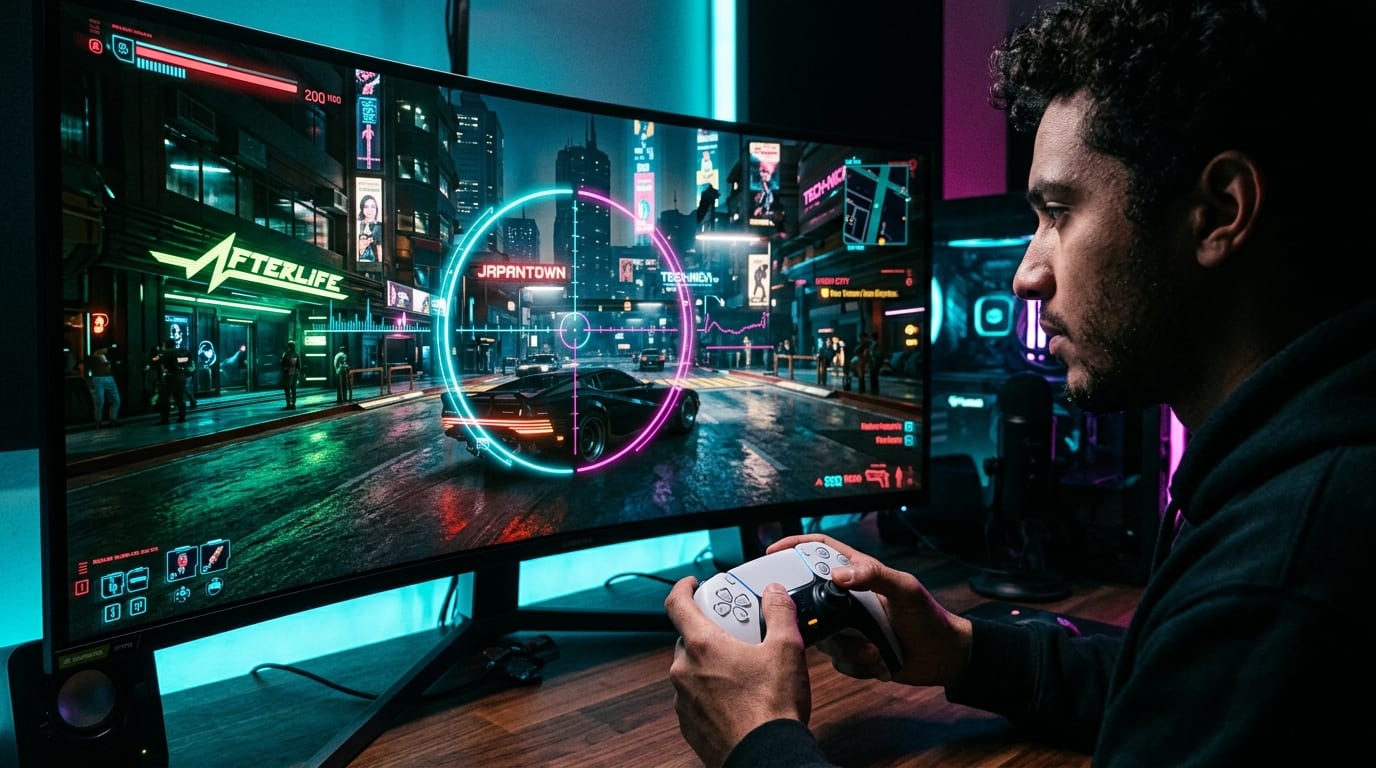
Last checked: September 28, 2026. This comprehensive hardware and controller guide incorporates verified deadzone telemetry, CD PROJEKT RED official platform guidance from Patch 2.1 through 2.2+, and stick drift calibration testing across DualSense, Xbox Wireless, and Steam Deck controllers.
Title: Official Calibration Guide Download
Badge: PDF Document Available
Download the complete, printable version of this Cyberpunk 2077 Controller Deadzone Guide for offline reference during your setup:
- Download Deadzone Settings Guide PDF: Cyberpunk 2077 Patch 2.2+ (6.2 KB, Full Platform Tables & Test Checklist)
Title: Version Note: Patch 2.1 & 2.2+ Precision Updates
Badge: Settings Context
Cyberpunk 2077’s deadzone controls were made significantly more precise in update 2.1 and remain fully relevant to the 2.2-and-later settings menu. Platform defaults and controller wear vary, so use the values below as a test profile rather than an inflexible universal "best" setting. Record your current settings before testing.
The Aim Frustration: Sluggish Response vs. Stick Drift
Cyberpunk 2077 can feel slow on a controller even when the game is running perfectly at 60 or 120 FPS. You move the right stick, wait for the camera to respond, push harder, and overshoot the target. Lower the deadzone and the aim feels better—until V starts turning by themselves because the stick is not perfectly centered.
That trade-off is what makes controller settings frustrating. A deadzone that is too large hides small stick movement and makes the game feel sluggish. A deadzone that is too small exposes drift, noise, and imperfect physical calibration. The best setting is not the lowest number in a guide. It is the lowest value your controller can hold without unwanted movement.
Cyberpunk 2077 is also more complicated than a single sensitivity slider. Inner Dead Zone controls when the game begins to recognize stick movement. Outer Dead Zone affects how soon the game treats the stick as fully pushed. Response curve, horizontal and vertical turning bonuses, zoom sensitivity reduction, aim assist, and display latency all influence how the same deadzone feels.
This guide gives you a practical Patch 2.2-and-later starting profile, explains the platform defaults, and provides a short drift-and-aim test so you can tune the controller without guessing.
---
The Quick Starting Profile (Neutral Baseline)
For a healthy controller with no obvious drift, use this as a neutral starting point:
| Setting | Starting Value | Why & Practical Function |
|---|---|---|
| Inner Dead Zone | 0.05 | Responsive on a healthy stick, but not as aggressive as zero |
| Outer Dead Zone | 0.95 | Reaches full input slightly before the physical edge |
| Horizontal Sensitivity | 10 | Moderate camera speed for testing and axis comparison |
| Vertical Sensitivity | 10 | Keeps vertical and horizontal movement easy to compare |
| Zoom Sensitivity Reduction | 1.00–1.50 | Start neutral, then slow aiming if scoped movement is too fast |
| Response Curve | Recommended or Dynamic | Use as a baseline before changing advanced acceleration behavior |
| Turning Bonuses | 0 for testing | Removes extra acceleration while you isolate stick response |
Title: Recommended Controller Sensitivity & Deadzone Starting Values
Badge: Baseline Calibration
Inner Dead Zone: 0.05 (Healthy) | 5 | emerald | Minimal initial deadband before stick registers
Inner Dead Zone: 0.15 (PS5 Default) | 15 | cyan | CDPR official DualSense baseline
Inner Dead Zone: 0.35 (Xbox/PC Default) | 35 | amber | Safe hardware default preventing wear drift
Outer Dead Zone: 0.95 | 95 | emerald | Full deflection threshold before rim compression
Base Sensitivity (H/V): 10 | 10 | cyan | Symmetrical baseline speed
These are not guaranteed best settings. They are a clean baseline. If your controller drifts at 0.05, raise the inner deadzone in small steps until the drift stops. If the camera still feels slow at 0.15 or 0.35, do not immediately force it lower; the official post-2.1 defaults are platform-specific for a reason.
---
What the Deadzone Settings Do
1. Inner Dead Zone
The inner deadzone is the amount of stick movement the game ignores around the center position. A larger value requires you to move the stick farther before the camera or character reacts. That can hide minor drift, but it also removes small aiming corrections.
A smaller inner deadzone feels more immediate because tiny movements register earlier. The cost is that a worn or noisy stick may produce unwanted camera movement. If the crosshair slowly moves while you are not touching the stick, the value is too low for that controller.
2. Outer Dead Zone
The outer deadzone controls the area near the edge of the stick’s physical travel. Lowering it can let the game reach maximum turning input before the stick is pressed all the way to the plastic rim.
This may help a controller whose stick does not reliably reach the outer boundary, but it can also make the last part of the movement feel compressed. A value around 0.95 is useful for testing because it avoids demanding a perfect physical edge push. If full-speed turning feels too sensitive or the controller reaches maximum output too quickly, return the outer value toward 1.00.
Critical Rule: Do not use Outer Dead Zone to fix center drift. Center drift is an Inner Dead Zone problem or a hardware mechanical wear issue. Changing the outer value will not make a drifting stick stay still.
---
Why Platform Defaults Matter After Update 2.1
CD PROJEKT RED announced that deadzone settings were made more precise in update 2.1 and noted that some players could experience stick drift after the change. The official support guidance listed new default inner-deadzone values:
- 0.15 on PlayStation 5 (DualSense)
- 0.35 on Xbox Series X|S and PC / Steam Deck
That does not mean those values are the best aim settings for every player. It means they are important reference points when diagnosing drift. If a controller only behaves correctly at 0.35, it may be worn, noisy, or exposing a calibration tolerance that a lower value makes visible.
A community starting point of 0.05 can feel more responsive on a pristine controller, but it should not override the platform-specific default blindly. Test from the default, lower the value gradually, and stop when drift appears.
---
The Five-Minute Controller Test & Calibration Protocol
Before changing a complete control profile, isolate the deadzone using this structured routine:
Title: The 4-Step Controller Deadzone Isolation Drill
Badge: 5-Minute Routine
- 1. Load a Quiet, Repeatable Location: Use a safe area where you can stand still without combat pressure (e.g., V's Megabuilding H10 apartment). Point V at a fixed wall antenna or lamppost, release both sticks, and wait several seconds. If the view moves by itself, note the direction and speed. Repeat the test with the controller connected in the way you normally play (wired USB vs Bluetooth, and native vs Steam Input).
- 2. Find the Lowest Stable Inner Value: Start at the current platform default (0.15 on PS5, 0.35 on Xbox/PC). Lower the Inner Dead Zone in small steps (0.02 increments). After each change, release the stick and watch the camera for several seconds. The correct test result is not "the smallest number"—it is the smallest number at which the camera remains completely motionless when untouched. If the camera moves at 0.05 and stays still at 0.08, use 0.08 plus a small safety margin (0.09) rather than forcing 0.05.
- 3. Check Micro-Aim at Distance: Aim at a distant object and make tiny left-right corrections. A deadzone that is too high creates a noticeable jump from "no movement" to "too much movement." A deadzone that is too low may make the reticle vibrate or drift. You want the first small correction to register cleanly without forcing you to fight noise.
- 4. Test the Outer Edge & Turn Speed: Push the stick slowly to the edge in each direction. Check whether the camera reaches maximum turning speed before the stick physically hits the rim. If it does not, try lowering the Outer Dead Zone slightly (e.g. 0.95). If the movement becomes abrupt or maximum speed arrives too early, move it back toward 0.98 or 1.00.
---
Aiming Settings That Matter After Deadzone
Once your physical deadzone is dialed in, tune these complementary aiming parameters:
1. Horizontal and Vertical Sensitivity
Start with both values at 10 so you can compare the axes cleanly. If horizontal turning feels acceptable but vertical aim is too fast, lower only vertical sensitivity. If both are slow, increase both in small steps.
Sensitivity changes how fast the camera moves after input is recognized. It does not fix a center deadzone that is blocking small movement. Adjusting sensitivity to compensate for a large deadzone can create a control profile that feels sluggish near center and violently fast once the stick crosses the threshold.
2. Zoom Sensitivity Reduction
Scoped aiming can feel too quick even when hip-fire camera movement feels good. Zoom Sensitivity Reduction is a better place to slow aim while keeping general turning responsive. Start around 1.00 to 1.50 and test with your actual loadout (revolvers, sniper rifles, smart assault rifles).
3. Response Curve
The response curve shapes how stick movement maps to camera movement. An aggressive exponential curve can feel muted near center and suddenly accelerate near the edge. A flatter or more direct curve feels more predictable for aiming, but requires finer thumb control. Use the game’s Recommended or Dynamic option as a baseline. Change the curve only after the deadzone is completely stable.
4. Turning Bonuses and Acceleration
Extra turning bonuses can make a controller feel responsive during large turns but erratic during precise headshot corrections. For diagnosis, set horizontal and vertical turning bonuses to 0. Once the base response feels predictable, add bonuses only if you genuinely want faster 180-degree camera turning at full stick deflection.
---
Platform-Specific Starting Advice Matrix
Use this matrix to identify the proper baseline for your hardware:
| Platform | Starting Deadzone Recommendation | If You Experience Stick Drift |
|---|---|---|
| PS5 / DualSense | Test official 0.15 default; try 0.05–0.08 on healthy sticks | Raise inner value until camera stops drifting; clean analog gimbal |
| Xbox Series X | S | Treat official 0.35 default as safe reference; try 0.10–0.15 | Keep at 0.35 or replace worn potentiometer thumbstick module |
| PC / Steam Deck | Begin at 0.05 native; verify Steam Input deadzone overlay | Ensure Steam Input and in-game deadzones are not stacking |
| Third-Party / Hall Effect | Set to 0.02–0.04 (Hall Effect magnetic sensors resist wear) | Virtually zero drift; tune outer deadzone to 0.96–0.98 |
These are troubleshooting starting points. The same controller model can behave differently depending on firmware, battery level, connection method, and physical wear.
---
Diagnose "Slow Response" Before Blaming the Deadzone
A sluggish feeling in Night City can stem from several distinct non-deadzone bottlenecks:
- Display Processing Delay: If your TV is outside of Game Mode (ALLM), image-processing engines add 40ms to 80ms of input lag.
- Bluetooth Polling & Software Layers: Wireless PC connections or stacked Steam Input calibration layers add latency. Test via wired USB.
- Low Frame Rate or Frame Pacing Stutters: When the game drops below 60 FPS, the camera update arrives inconsistently even when the stick is working correctly.
- Zoom Sensitivity Reduction: Aiming may feel slow simply because zoom reduction is set too low (e.g. 0.60 instead of 1.20).
Test one layer at a time. If the camera moves only after a large push, lower the inner deadzone. If it responds immediately but moves too slowly, adjust sensitivity.
---
How to Handle Controller Drift Without Making Aim Worse
Drift is not always a software setting problem. Dust, potentiometer carbon wear, damaged centering springs, or wireless interference can all produce phantom movement:
1. Raise the inner deadzone just enough to stop the drift, then verify whether micro-aim remains usable.
2. If the required inner deadzone exceeds 0.25 on PS5 or 0.40 on Xbox/PC, precise aiming will feel compromised. At that stage, the controller requires contact cleaner, sensor recalibration, or replacement with a modern Hall Effect controller.
3. On PC, test with Steam Input disabled and enabled separately. Two layers applying deadzone processing can distort stick linearity.
---
Title: The Best Setting is the One You Can Reproduce
Badge: Vault Engineering Verdict
There is no single deadzone value that turns every Cyberpunk 2077 controller into the same device. A low inner value makes a healthy stick feel laser-precise, but exposes drift on worn hardware. A higher value makes an older controller playable, but reduces micro-corrections. Patch 2.2 and later give you complete granular control. The goal is not the lowest number in a guide—it is a controller that stays still when released, responds instantly to micro-aim, and reaches full turn speed smoothly.
---
Technical Resources & Interactive Tools
- Benchmark your Night City graphics settings with our FPS & Bottleneck Calculator.
- Verify PC hardware specs for Phantom Liberty on the PC Game Requirements Checker.
- Build a dedicated stutter-free gaming rig using our Gaming PC Builder.
- Join the controller and hardware discussion on the Game Vault Community Forum.
- Download the Official Deadzone Settings PDF for offline reference.